

WhatsApp Message Templates
Create, manage, and use WhatsApp message templates for outbound messaging in Replyn.
WhatsApp message templates are pre-approved message formats that allow you to send outbound messages to customers. Templates are required by WhatsApp whenever you initiate a conversation or re-engage a customer outside the 24-hour messaging window.
Why Are Templates Needed?
WhatsApp enforces a 24-hour messaging window policy. After a customer sends you a message, you have 24 hours to reply with any content (known as a "session message"). Once the 24-hour window closes, you can only send messages using pre-approved templates.
24-Hour Window: If more than 24 hours have passed since the customer's last message, you must use an approved message template to re-initiate the conversation. Attempting to send a free-form message outside this window will fail.
Templates ensure that businesses follow WhatsApp's messaging policies and that customers receive high-quality, expected communications.
Template Categories
WhatsApp organizes templates into three categories. The category you select affects pricing and approval criteria.
Marketing
Marketing templates are used for promotional content, product announcements, offers, and customer re-engagement. Examples include:
- Promotional offers and discounts
- Product launch announcements
- Newsletters and updates
- Cart abandonment reminders
Utility
Utility templates are used for transactional and service-related messages that customers expect to receive. Examples include:
- Order confirmations and shipping updates
- Appointment reminders and confirmations
- Account notifications
- Payment receipts
Authentication
Authentication templates are used for one-time passwords (OTPs) and verification codes. These templates follow a strict format defined by WhatsApp and are typically auto-approved.
Creating Templates in Replyn
Navigate to Templates
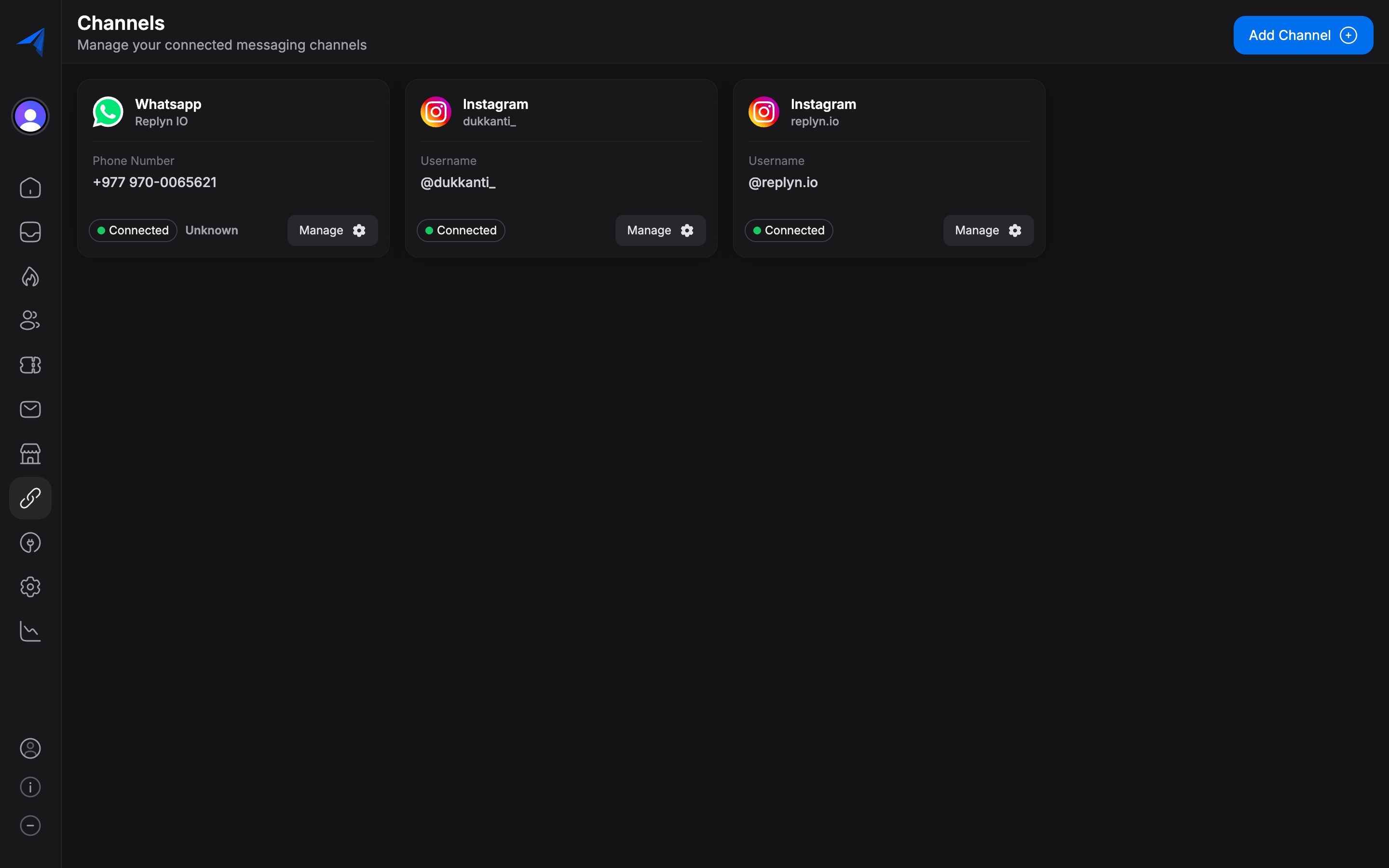
Go to Settings > Channels, select your WhatsApp channel, and click the Templates tab. Click Create Template to start.
Choose a Category
Select the appropriate category for your template: Marketing, Utility, or Authentication. Choose carefully, as the category affects both pricing and the approval process.
Define the Template Name
Give your template a descriptive name using lowercase letters, numbers, and underscores (e.g., order_confirmation, appointment_reminder). This name is used internally and is not visible to customers.
Select Language
Choose the language for your template. You can create multiple versions of the same template in different languages to serve a multilingual customer base.
Compose the Template Content
Write the body of your template message. You can include:
- Header (optional) — Text, image, video, or document.
- Body (required) — The main message content, with optional variables.
- Footer (optional) — A short line of text at the bottom.
- Buttons (optional) — Call-to-action or quick-reply buttons.
Add Sample Content
Provide sample values for any variables you used. Meta uses these samples during the review process to understand how the template will look in practice.
Submit for Approval
Click Submit to send your template to Meta for review. You will be redirected to your templates list where you can track the approval status.

Using Variables in Templates
Variables allow you to personalize templates with dynamic content such as customer names, order numbers, or appointment times. Variables are denoted by double curly braces with a number.
Example template body:
Hi {{1}}, your order #{{2}} has been shipped and will arrive by {{3}}. Track your delivery here: {{4}}When sending the template, Replyn will prompt you to fill in each variable or automatically populate them from contact and order data.
Variable mapping in Replyn:
| Variable | Description | Example Value |
|---|---|---|
{{1}} | Customer name | Sarah |
{{2}} | Order number | 10452 |
{{3}} | Delivery date | Feb 20, 2026 |
{{4}} | Tracking URL | https://track.example.com/10452 |
When using templates in Broadcasts, variables are automatically populated from your contact list data. Make sure your contact records have the necessary fields filled in.
Template Approval Process
After submitting a template, Meta reviews it against their WhatsApp Business Policy. Here is what to expect:
- Review time: Most templates are reviewed within a few minutes to a few hours. In some cases, review can take up to 24 hours.
- Approval statuses:
- Pending — The template is under review.
- Approved — The template is ready to use.
- Rejected — The template did not pass review. You will see a reason for rejection.
- Rejection reasons: Common reasons include misleading content, missing required information, incorrect category selection, or policy violations.
If a template is rejected, review the rejection reason, make the necessary changes, and resubmit.
Managing Templates
From the templates list in Replyn, you can:
- View status — See whether each template is pending, approved, or rejected.
- Edit and resubmit — Modify rejected templates and submit them again for review.
- Delete — Remove templates you no longer need.
- Duplicate — Copy an existing template to create a variation.
- Filter by category — Quickly find templates by their category type.
Best Practices
- Be clear and concise — Write templates that deliver value to the customer in as few words as possible.
- Choose the right category — Miscategorizing a template can lead to rejection or higher costs.
- Personalize with variables — Templates with personalization have higher engagement rates.
- Provide clear opt-out instructions — For marketing templates, include a way for customers to opt out of future messages.
- Test before broadcasting — Send templates to a small test group before using them in large-scale broadcasts.