

WhatsApp Business Profile
Configure your WhatsApp Business profile including name, description, address, and business hours.
Your WhatsApp Business profile is the first thing customers see when they interact with your business on WhatsApp. A complete and professional profile builds trust and helps customers identify your business.
Profile Information
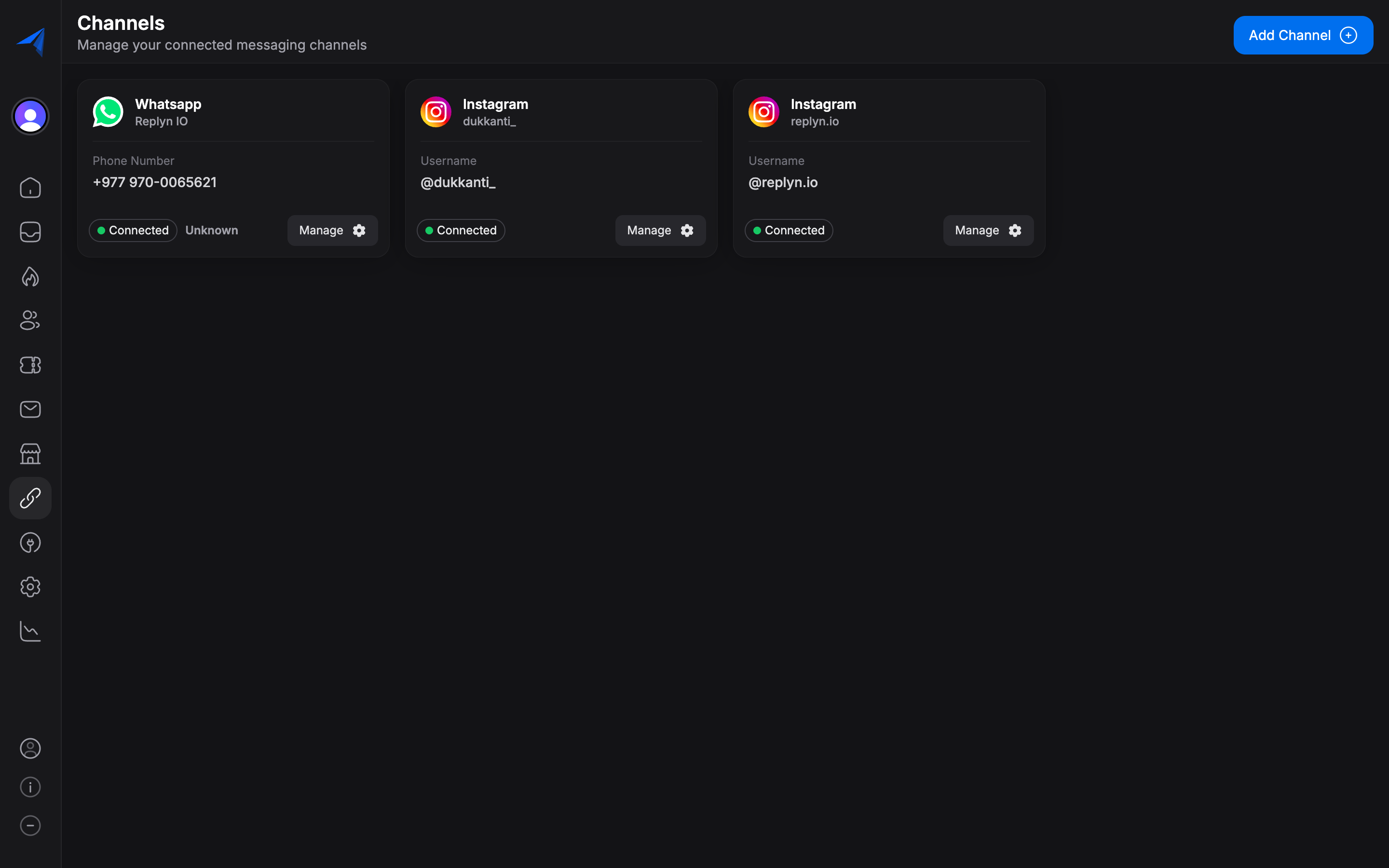
You can configure the following profile fields from within Replyn. Navigate to Settings > Channels, select your WhatsApp channel, and click Edit Profile.
Business Name
Your business name is displayed to customers in the chat header and contact info. This name is set during account creation and is subject to Meta's display name guidelines.
Changing your WhatsApp display name requires approval from Meta and can take up to 3 business days. Make sure to choose a name that accurately represents your business.
Description
Add a short description (up to 512 characters) of your business. This appears in your WhatsApp Business profile and helps customers understand what your business does.
Tips for a good description:
- Clearly state what products or services you offer.
- Mention your unique value proposition.
- Keep it concise and professional.
Address
Add your physical business address. This is especially important for clinics and brick-and-mortar ecommerce businesses, as it helps customers locate you.
Website
Add your website URL so customers can easily find more information about your business, browse products, or book appointments.
Provide a contact email address for customers who prefer email communication.
Category
Select a business category that best describes your business. This helps WhatsApp classify your account and may appear in your profile.
Profile Picture
Your profile picture appears as a circular avatar in WhatsApp chats and contact lists.
Requirements:
- Minimum resolution: 192 x 192 pixels.
- Recommended resolution: 640 x 640 pixels.
- Supported formats: JPEG, PNG.
- Maximum file size: 5 MB.
To update your profile picture, click the avatar area on the profile settings page and upload a new image. The change takes effect immediately.

Business Hours
Set your business hours to let customers know when they can expect a response. WhatsApp displays these hours in your business profile.
Access Business Hours Settings
In your WhatsApp channel settings, scroll to the Business Hours section.
Set Your Schedule
For each day of the week, toggle the day on or off and set the opening and closing times. You can set different hours for different days.
Set Your Timezone
Select the timezone that matches your business location. This ensures business hours are displayed correctly to your customers.
Save Changes
Click Save to publish your updated business hours to your WhatsApp profile.
Business hours are informational only — they do not automatically enable or disable messaging. To set up auto-replies for after-hours messages, configure automation rules in your Inbox settings.
Best Practices
- Complete all fields — Profiles with complete information appear more trustworthy to customers.
- Use a recognizable profile picture — Your logo or storefront image works well.
- Keep your description updated — If your services or hours change, update your profile accordingly.
- Add your website — This gives customers an easy way to learn more about your business.