

Facebook Messenger
Connect your Facebook Business Page to Replyn and manage Messenger conversations from your unified inbox.
Connect your Facebook Business Page to Replyn to manage all Messenger conversations alongside your other channels. Respond to customer inquiries, handle support requests, and engage with your audience — all without leaving Replyn.
Prerequisites
Before connecting Facebook Messenger to Replyn, make sure you have:
- A Facebook Business Page for your business.
- Admin access to the Facebook Page you want to connect.
- Admin access to your Replyn workspace.
Connecting Facebook Messenger to Replyn
Open Channel Settings
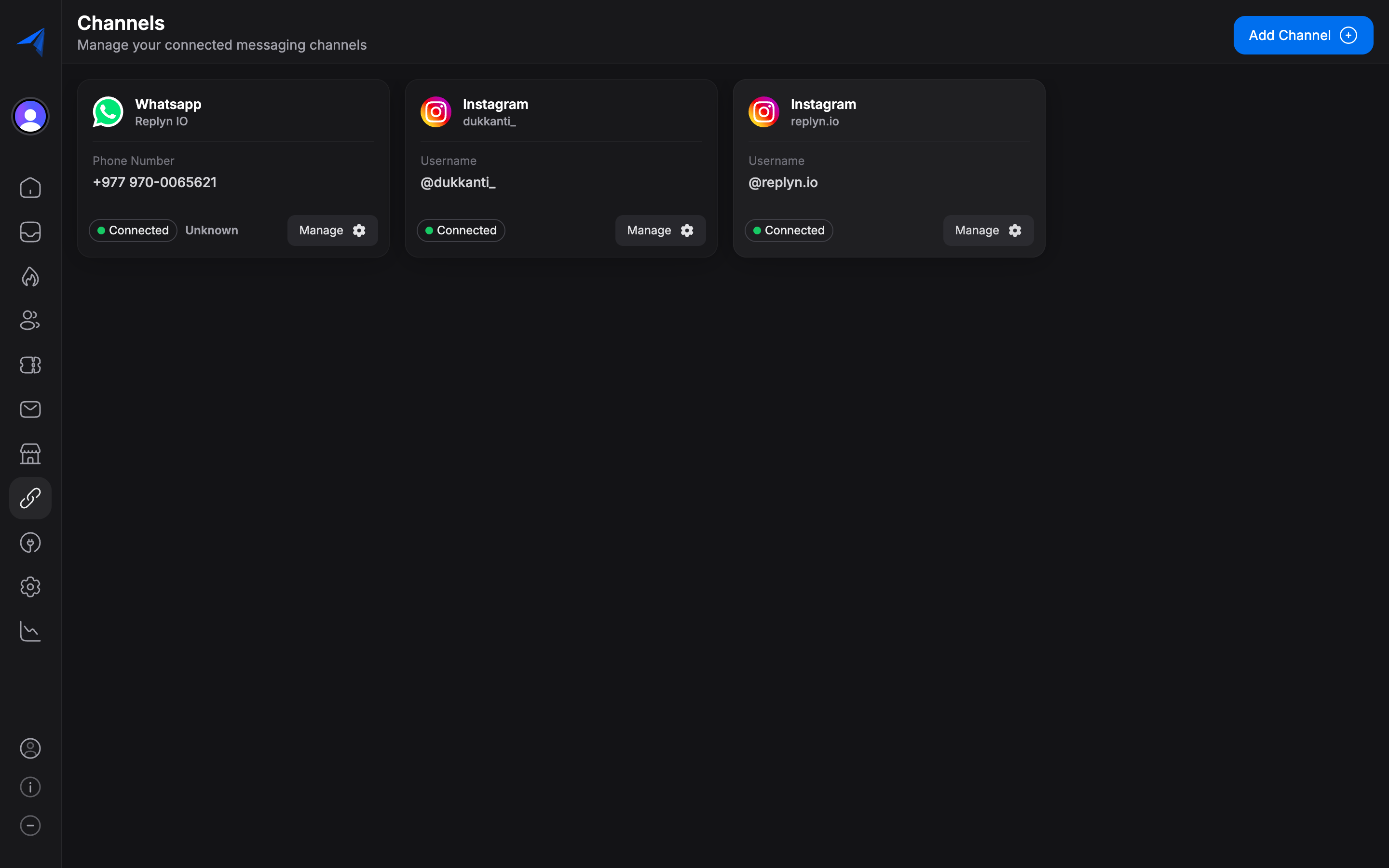
In your Replyn dashboard, navigate to Settings > Channels and click Add Channel. Select Facebook Messenger from the list.
Authenticate with Facebook
Click Connect with Facebook to start the OAuth authentication flow. Sign in with your Facebook account that has admin access to the Page you want to connect.
Grant Permissions
Facebook will request permissions for Replyn to manage your Page's messaging. Grant all requested permissions to ensure full functionality:
- Pages Messaging — Send and receive messages through your Page.
- Pages Manage Metadata — Access Page metadata and settings.
- Pages Read Engagement — Read comments and interactions on your Page.
Select Your Facebook Page
If you manage multiple Facebook Pages, select the one you want to connect to Replyn.
Configure Channel Settings
Assign an internal name to the channel, choose a team or inbox assignment, and set your notification preferences. Click Save to finish.
Verify Connection
Your Facebook Messenger channel should now show a green Connected status in Settings > Channels. Send a test message to your Page on Facebook to confirm messages appear in your Replyn inbox.
Connecting Facebook Messenger does not affect your Instagram connection. These are separate channels in Replyn, even though both use Facebook authentication. If you also want to manage Instagram, set it up separately in the Instagram Setup guide.
Managing Messenger Conversations
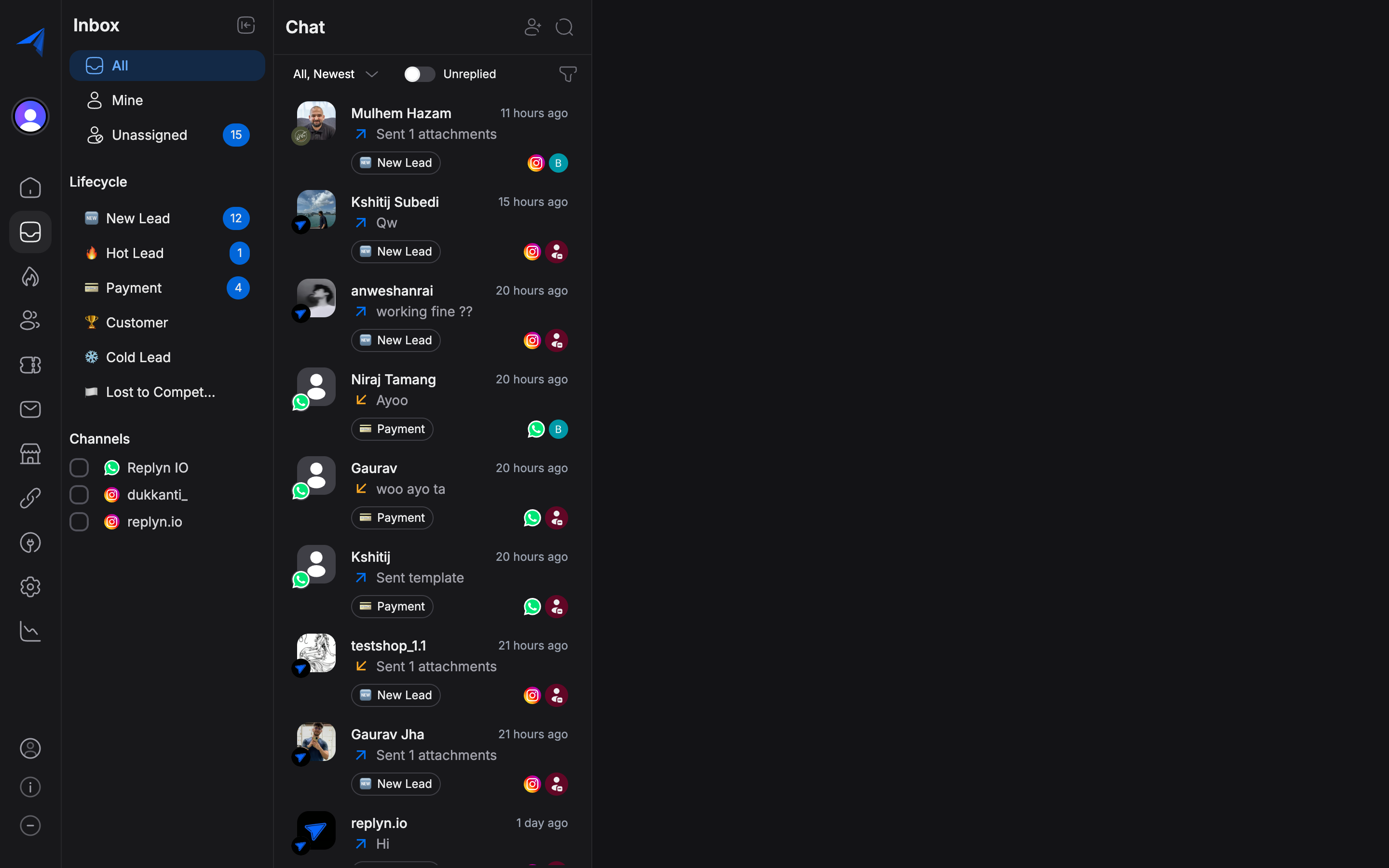
Once connected, all incoming Messenger conversations appear in your Replyn Inbox. Here is how to work with them:
Receiving Messages
New messages from customers are routed to your inbox in real time. Each conversation shows:
- The customer's Facebook name and profile picture.
- The full message history.
- Any attachments, images, or links shared by the customer.
Replying to Messages
Type your reply in the message composer and click Send. Your reply is delivered to the customer on Messenger. You can also:
- Attach files — Send images, documents, or other files.
- Use quick replies — Select from saved reply templates to respond faster.
- Add internal notes — Leave notes for your team that are not visible to the customer.
Assigning Conversations
Assign Messenger conversations to specific team members for follow-up:
- Open the conversation.
- Click the Assign button in the conversation toolbar.
- Select a team member from the dropdown.
The assigned team member will receive a notification and the conversation will appear in their personal inbox view.
Contact Linking
Replyn automatically creates a Contact record for each customer who messages your Facebook Page. If the customer has previously interacted with you on another channel, Replyn will attempt to link the conversations to the same contact record.
Troubleshooting
| Issue | Solution |
|---|---|
| Page not appearing during setup | Verify you have admin access to the Facebook Page. |
| Messages not syncing | Ensure all permissions were granted. Disconnect and reconnect if needed. |
| Duplicate conversations | Check if the same Facebook Page is connected more than once. |
| Authentication errors | Make sure your Facebook session is active and try again. |
Best Practices
- Respond quickly — Facebook tracks your Page's response time and displays it publicly. Aim to respond within minutes.
- Use saved replies — Create templates for frequently asked questions to speed up response times.
- Monitor outside business hours — Consider setting up auto-replies for messages received outside your operating hours.
- Keep contact records updated — Merge duplicate contacts when customers reach out on multiple channels.