

Instagram Welcome Messages
Set up automatic welcome messages for new Instagram DM conversations in Replyn.
Welcome messages are automated greetings sent to customers when they start a new direct message conversation with your Instagram account. They set the tone for the interaction and let customers know you are available to help.
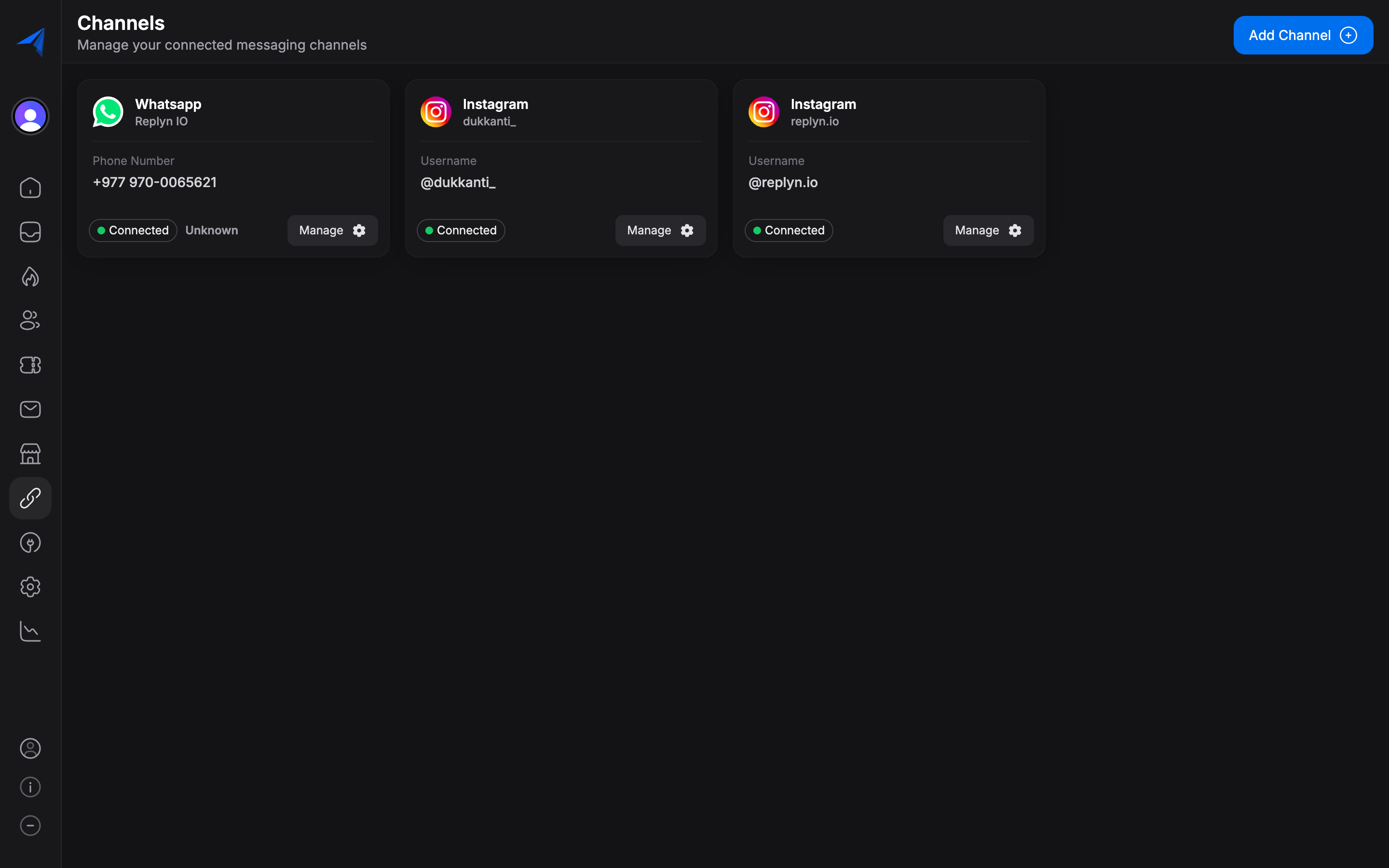
Setting Up Welcome Messages
Navigate to Welcome Message Settings
Go to Settings > Channels, select your Instagram channel, and click the Welcome Messages tab.
Enable Welcome Messages
Toggle the Enable Welcome Messages switch to turn on automatic greetings for new DM conversations.
Write Your Welcome Message
Compose the message that will be automatically sent when a customer initiates a new DM with your Instagram account. Keep it friendly, concise, and helpful.
Save and Test
Click Save to activate your welcome message. Test it by sending a new DM to your Instagram account from a different account to verify the message is delivered correctly.
Customizing Welcome Message Templates
You can create different welcome messages tailored to your business needs.
Example Welcome Messages
For Clinics:
Hi there! Welcome to [Clinic Name]. We're here to help with appointment
bookings, inquiries, and more. How can we assist you today?
For Ecommerce:
Hello! Thanks for reaching out to [Store Name]. Whether you have questions
about our products, need help with an order, or just want to say hi — we're
here for you. How can we help?
General:
Welcome! Thanks for messaging us. A member of our team will be with you
shortly. In the meantime, feel free to share how we can help.
Message Guidelines
- Keep it short — Welcome messages should be 1-3 sentences. Customers want to get to the point quickly.
- Set expectations — Let customers know when they can expect a response, especially outside business hours.
- Be warm and professional — Your welcome message is the first impression of your brand.
- Include a call to action — Prompt the customer to share what they need help with.
Enabling and Disabling Welcome Messages
You can turn welcome messages on or off at any time without deleting your saved message content.
| Action | How |
|---|---|
| Enable | Go to Settings > Channels > Instagram > Welcome Messages and toggle On. |
| Disable | Go to Settings > Channels > Instagram > Welcome Messages and toggle Off. |
| Edit | Update the message text and click Save. Changes apply immediately to new conversations. |
Welcome messages are only sent once per conversation. If a customer has previously messaged you, they will not receive the welcome message again when they send a new message in an existing conversation thread.
Welcome messages are sent as automated replies from your Instagram account. Make sure your message content complies with Instagram's community guidelines and messaging policies.
Best Practices
- Update messages seasonally — Reflect current promotions, holiday hours, or seasonal services.
- Localize your message — If you serve customers in multiple languages, consider the primary language of your audience.
- Test regularly — After making changes, always test the welcome message flow to ensure it works as expected.
- Combine with assignment rules — Pair welcome messages with inbox assignment rules so that a team member is automatically assigned to the new conversation after the welcome message is sent.