

Instagram Setup
Connect your Instagram Business or Creator account to Replyn and manage DMs, comments, and more.
Connect your Instagram account to Replyn to manage direct messages, reply to comments, and engage with your audience — all from one place.
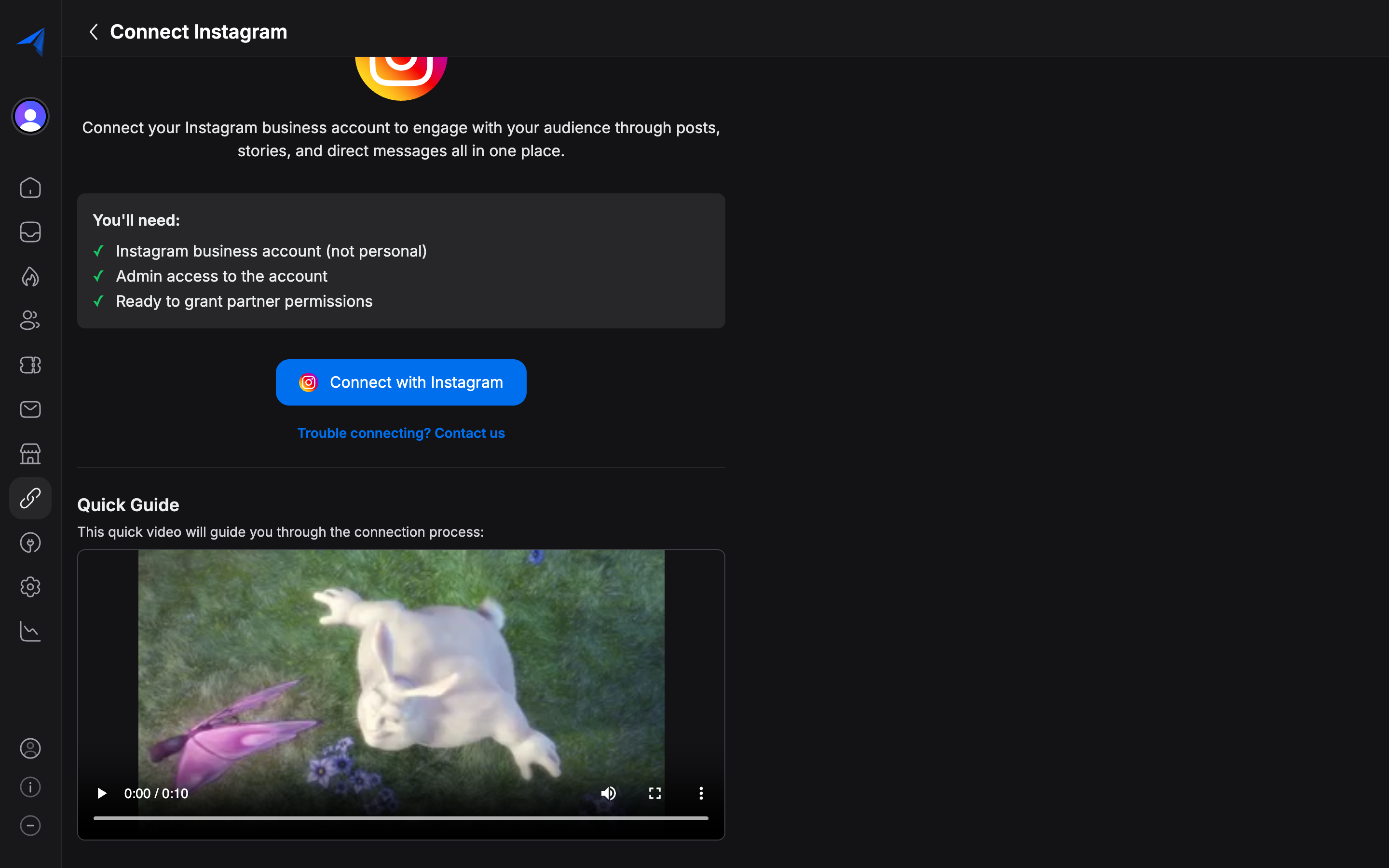
Prerequisites
Before connecting Instagram to Replyn, ensure you have the following:
- An Instagram Business or Instagram Creator account (personal accounts are not supported).
- A Facebook Page connected to your Instagram account (this is required by Meta's API).
- Admin access to the Facebook Page linked to your Instagram account.
- Admin access to your Replyn workspace.
To convert a personal Instagram account to a Business or Creator account, go to your Instagram app settings, select Account, then Switch to Professional Account, and follow the prompts.
Connecting Instagram to Replyn
Open Channel Settings
In your Replyn dashboard, navigate to Settings > Channels and click Add Channel. Select Instagram from the list of available channels.
Authenticate with Facebook
Click Connect with Facebook to begin the OAuth flow. You will be redirected to Facebook where you need to sign in with the account that has admin access to the Facebook Page linked to your Instagram account.
Grant Required Permissions
During the authentication flow, Facebook will ask you to grant Replyn the following permissions:
- Instagram Basic — Access your Instagram profile information.
- Instagram Manage Messages — Read and send Instagram direct messages.
- Instagram Manage Comments — Read and reply to comments on your posts.
- Pages Manage Metadata — Access your connected Facebook Page.
- Pages Messaging — Send and receive messages through your Page.
Make sure to grant all requested permissions. Denying any permission may limit Replyn's functionality.
Select Your Instagram Account
If you have multiple Instagram accounts connected to your Facebook Page, select the one you want to connect to Replyn.
Configure Your Channel
Give your Instagram channel an internal name, assign it to the appropriate team, and configure notification preferences. Click Save to complete the setup.
Verify Connection
Your Instagram channel should now appear under Settings > Channels with a green Connected status. Send a test DM to your Instagram account to verify that messages appear in your Replyn inbox.
Required Permissions: If you skip or deny any of the requested permissions during the Facebook authentication step, Replyn will not be able to fully manage your Instagram messages and comments. You can update permissions later by disconnecting and reconnecting the channel.
Troubleshooting
| Issue | Solution |
|---|---|
| Instagram account not appearing | Make sure your Instagram account is a Business or Creator account and is linked to a Facebook Page. |
| Messages not syncing | Verify that all required permissions were granted. Disconnect and reconnect the channel if needed. |
| "Page not eligible" error | Ensure you have admin access to the Facebook Page connected to your Instagram account. |
| Connection keeps failing | Check that your Facebook session is active and that no two-factor authentication issues are blocking the flow. |