

WhatsApp Business Setup
Connect your WhatsApp Business API to Replyn and start managing customer conversations.
Connect your WhatsApp Business account to Replyn to send and receive messages, use pre-approved templates, and manage all WhatsApp conversations from your unified inbox.
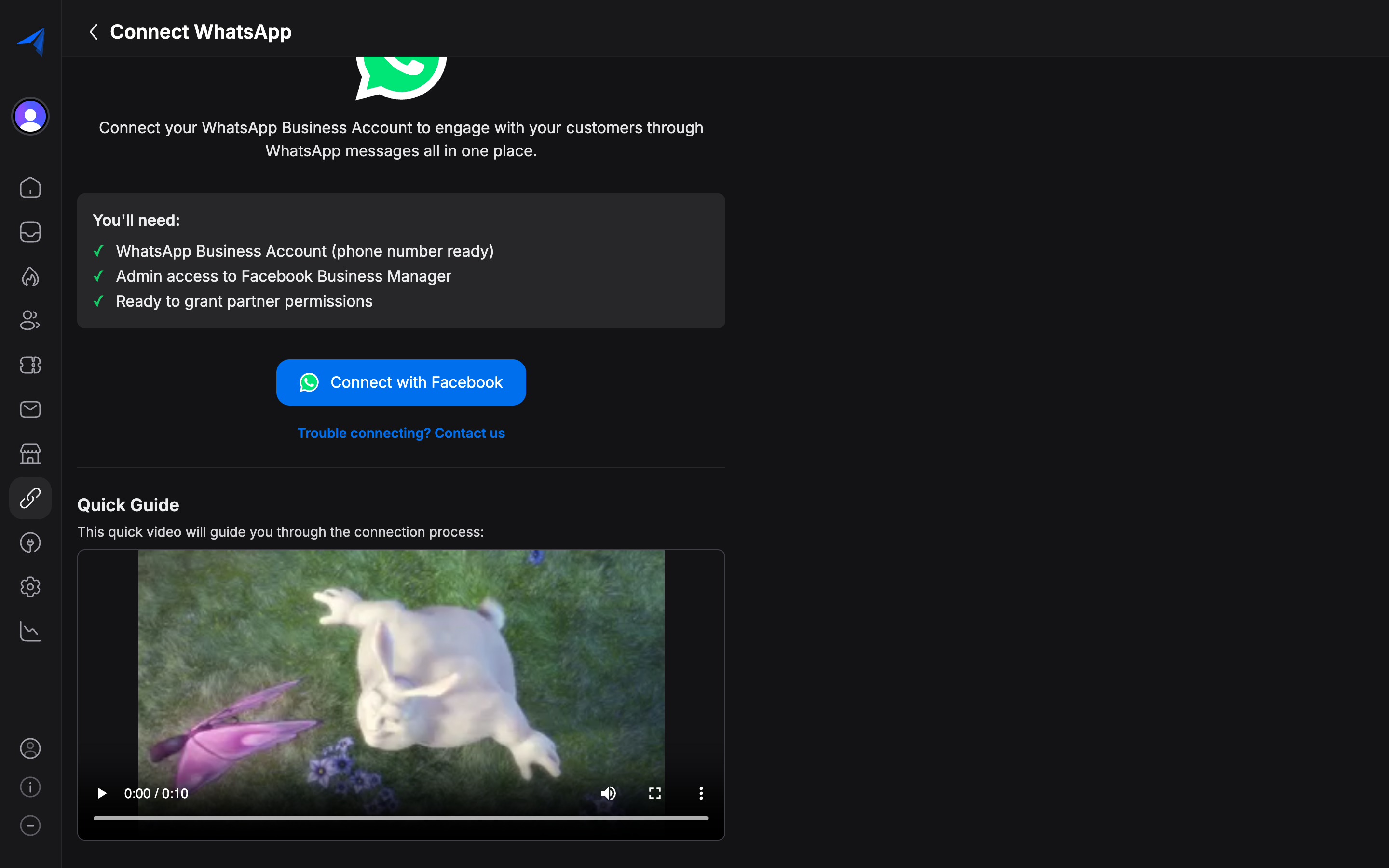
Prerequisites
Before you begin, make sure you have the following:
- A Meta Business account (formerly Facebook Business) — create one here if you do not have one.
- A verified phone number that is not already registered with WhatsApp or WhatsApp Business app.
- Admin access to your Replyn workspace.
If your phone number is currently used with the WhatsApp or WhatsApp Business mobile app, you must remove it from that app before connecting it to the WhatsApp Business API through Replyn. This is a Meta requirement and cannot be bypassed.
Connecting WhatsApp to Replyn
Open Channel Settings
In your Replyn dashboard, navigate to Settings > Channels and click Add Channel. Select WhatsApp from the list of available channels.
Sign in with Meta
Click Connect with Meta to begin the authentication flow. You will be redirected to Meta where you need to sign in with your Meta Business account credentials.
Select or Create a WhatsApp Business Account
If you already have a WhatsApp Business Account (WABA) under your Meta Business account, select it from the list. Otherwise, Replyn will guide you through creating a new one.
Register Your Phone Number
Enter the phone number you want to use for WhatsApp Business. Meta will send a verification code via SMS or voice call. Enter the code to verify ownership of the number.
Configure Your Channel
Give your WhatsApp channel a name within Replyn (for internal reference), and assign it to the appropriate team or inbox. Click Save to complete the setup.
Verify Connection
Once connected, you should see your WhatsApp channel listed under Settings > Channels with a green Connected status. Send a test message to your WhatsApp number to confirm everything is working.
WhatsApp Business API Approval: New WhatsApp Business accounts start with limited messaging capabilities. Meta may require additional business verification before you can send messages at higher volumes. This verification process can take several business days. You can check your verification status in your Meta Business Settings.
What's Next
After connecting WhatsApp, you should: