

Tags
Organize and categorize your contacts with tags for easy filtering, segmentation, and broadcast targeting.
Tags are simple labels you attach to contacts to categorize them. They are flexible, free-form, and can represent anything meaningful to your business — customer type, interest area, location, campaign source, or any other grouping. Tags power filtering, segmentation, and broadcast targeting throughout Replyn.
Creating Tags
You can create tags in two ways:
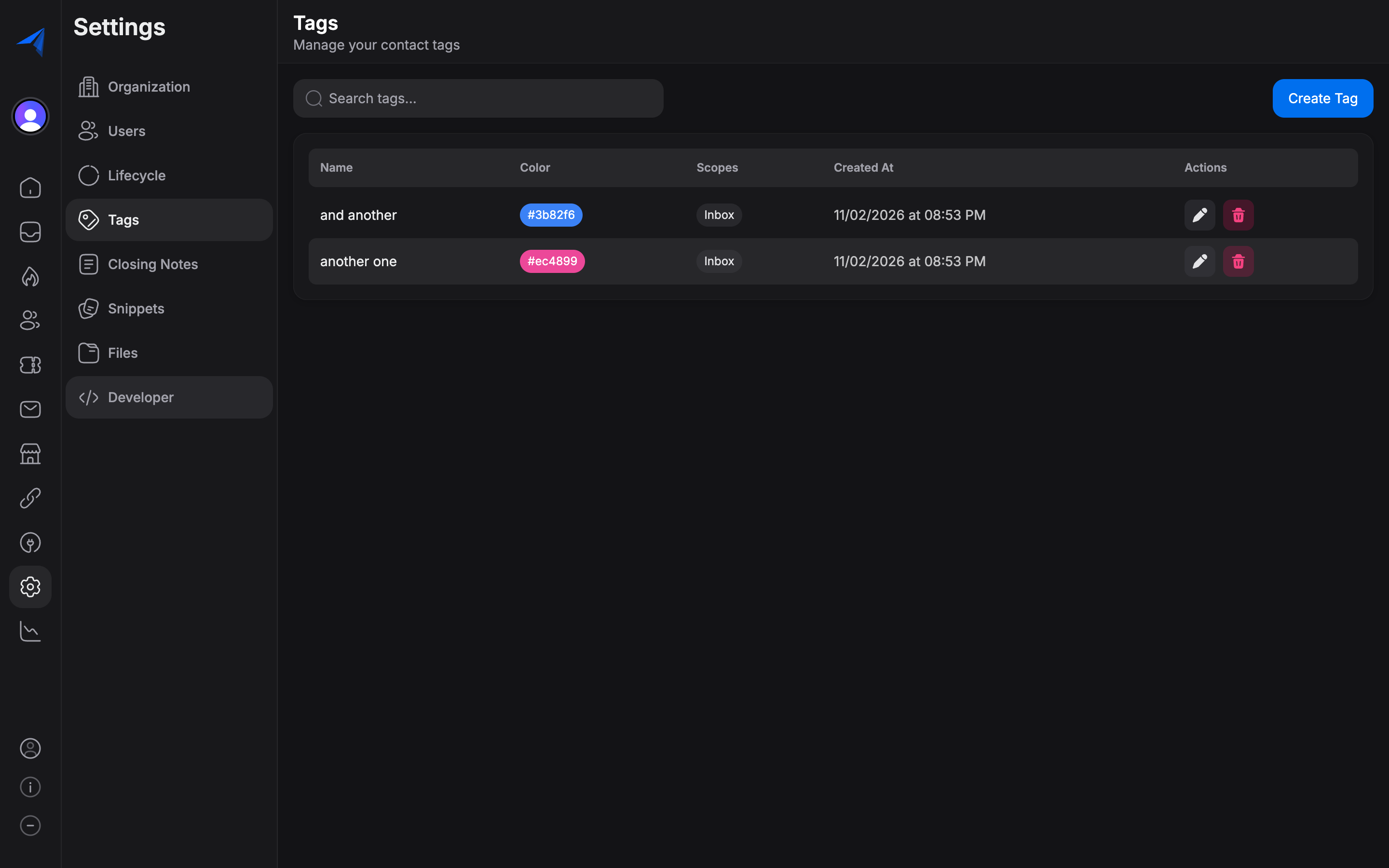
Navigate to Settings > Contacts > Tags.
Click Add Tag and enter the tag name (e.g., "VIP", "Newsletter", "Walk-in").
Optionally choose a color for the tag to make it visually distinct in the contact list and conversation views.
Click Save. The tag is now available to apply to any contact.
Applying Tags to Contacts
Tags can be applied to contacts in several ways:
Open a contact's detail panel, find the Tags field, and click to add or remove tags. Start typing to search for existing tags.
Filtering by Tags
Tags are available as a filter throughout Replyn:
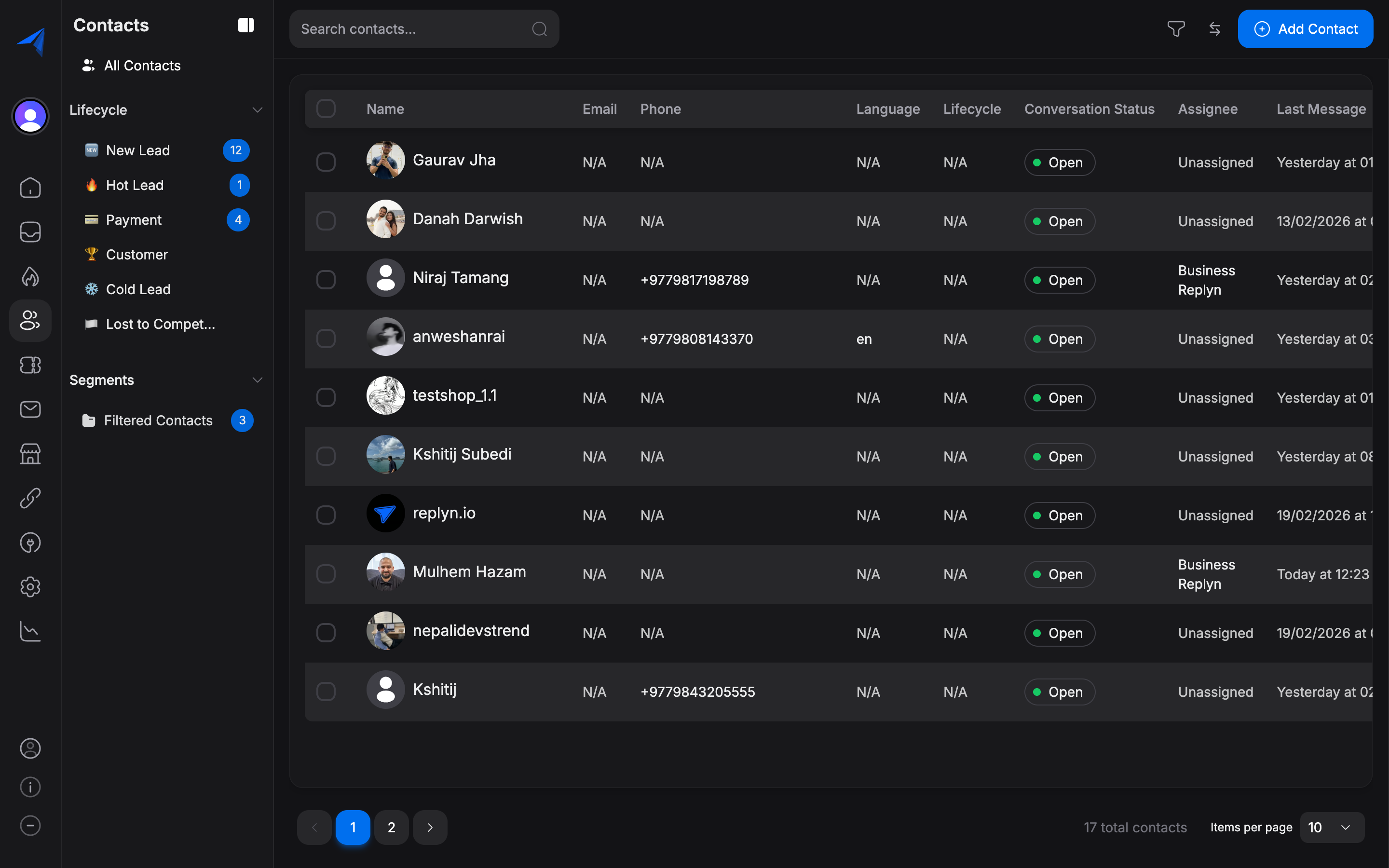
- Contact list — Use the Filter button and select one or more tags to narrow the contact list.
- Segments — Include tag-based rules in your saved segments (e.g., "Contact has tag VIP").
- Broadcasts — Target contacts with specific tags when choosing your broadcast audience.
- Reports — Break down analytics by tag to compare performance across groups.
Managing Tags in Settings
All tag management is centralized in Settings > Contacts > Tags.
Navigate to Settings > Contacts > Tags to see a list of all tags in your workspace along with the number of contacts using each tag.
From this page you can:
- Rename a tag — Click the tag name to edit it. The new name will apply across all contacts that use the tag.
- Change color — Update the tag's color for better visual organization.
- Merge tags — Combine two tags into one if you have duplicates (e.g., merge "VIP" and "vip" into a single tag).
- Delete a tag — Remove a tag entirely. The tag will be removed from all contacts that currently have it.
Click Save after making changes.
Deleting a tag removes it from all contacts immediately. If you use the tag in any saved segments or broadcast rules, those references will also be removed. Double-check your segments before deleting a tag.