

Creating Contacts
Learn the different ways to add contacts to Replyn — manually, via CSV import, or automatically from incoming messages.
Replyn provides three ways to create contacts. You can add them one at a time through a form, import a batch from a CSV file, or let Replyn create them automatically whenever a new person messages you on a connected channel.
Method 1: Manual Creation
Create a single contact by filling out the contact form.
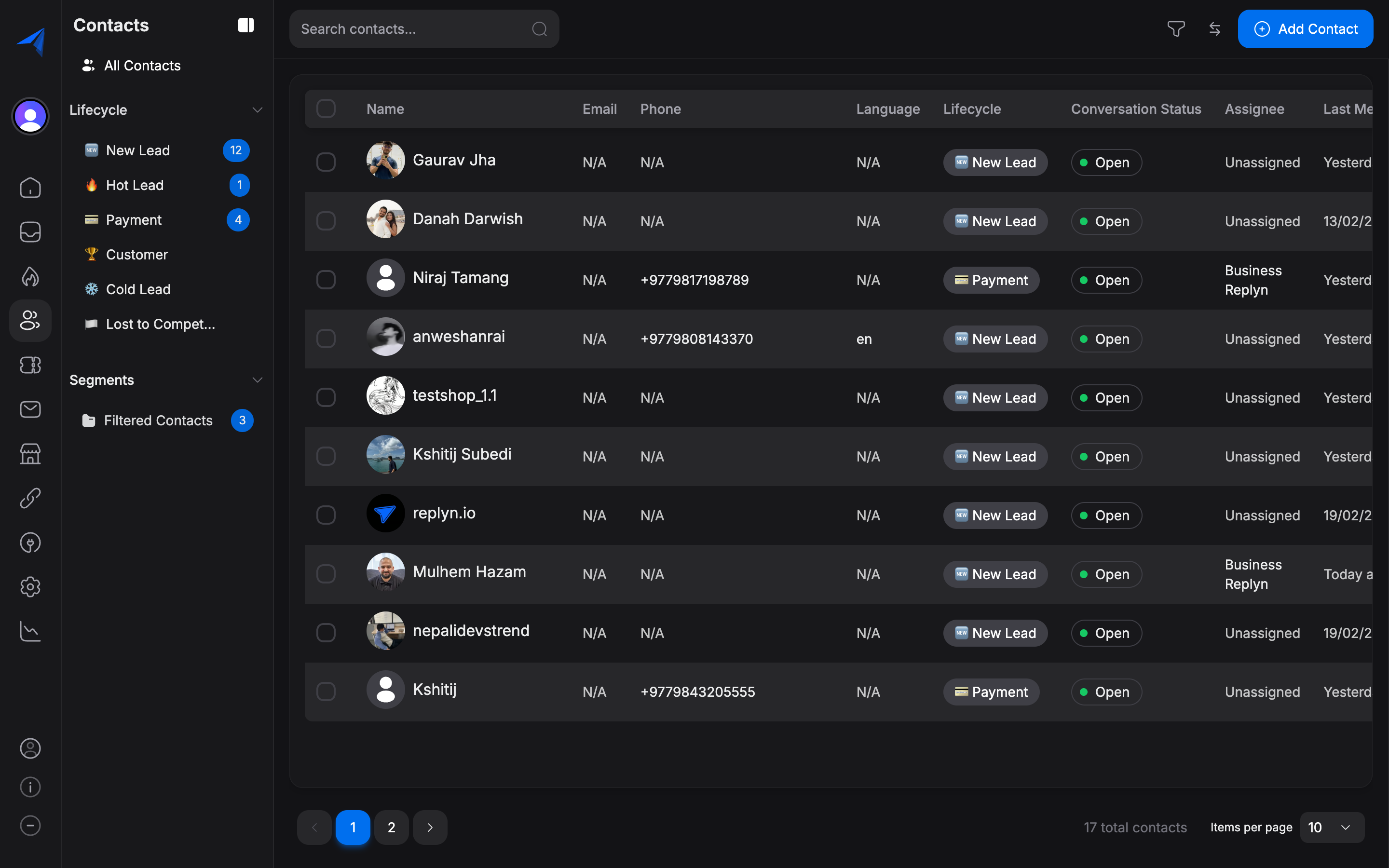
Navigate to Contacts in the left sidebar and click the Add Contact button in the top-right corner.
Fill in the contact details. Name and at least one identifier (phone number or email) are required. You can also set optional fields such as lifecycle stage, tags, and custom fields.
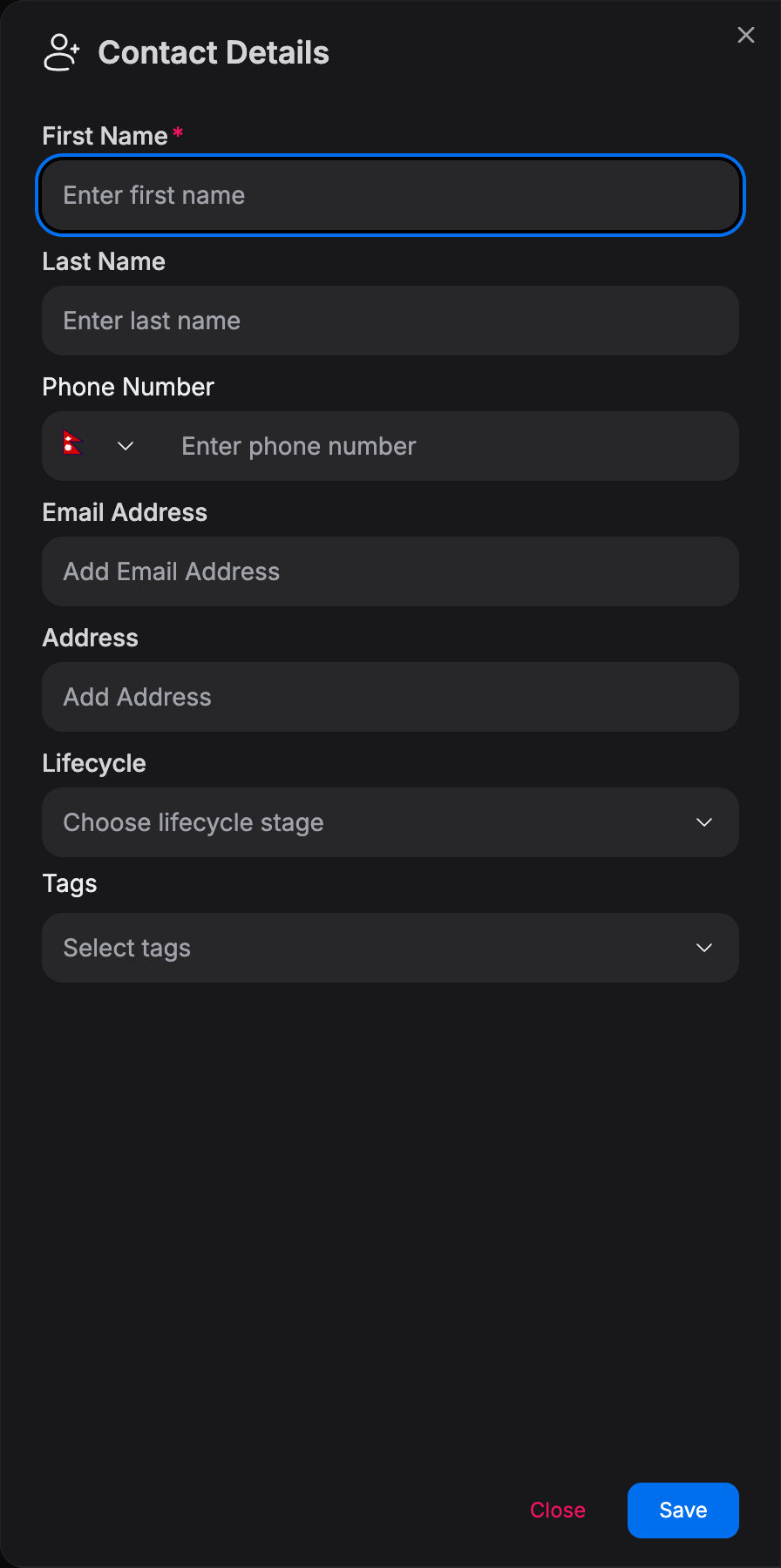
Click Save to create the contact. The new contact will appear in your contact list immediately.
Method 2: Bulk Import from CSV
Import many contacts at once using a CSV file.
Go to Contacts and click the Import button (or select Import Contacts from the actions menu).
Download the sample CSV template if you need a reference for the expected columns. Prepare your CSV file with columns such as name, phone, email, tags, and any custom fields you have configured.
Upload your CSV file. Replyn will show a preview of the data and let you map CSV columns to contact fields.
Review the mapping and click Import. Replyn will process the file and report how many contacts were created, updated, or skipped due to errors.
Duplicate contacts are detected by phone number or email. If a contact with the same phone or email already exists, the import will update the existing record rather than creating a duplicate.
Method 3: Automatic Creation from Incoming Messages
When a new person sends a message to one of your connected channels (WhatsApp, Instagram, Facebook, etc.), Replyn automatically creates a contact record for them.
Replyn creates a contact using the information available from the channel — typically the person's name and phone number (for WhatsApp) or username (for Instagram/Facebook).
The new contact appears in your contact list with the channel icon indicating where the conversation originated. You can then enrich the record with additional details like email, tags, or custom fields.
Automatically created contacts default to the Lead lifecycle stage. You can change this default behavior in Settings > Contacts.