Segments & Filters
Create dynamic segments to group contacts by shared attributes and use them for targeted broadcasts and reporting.
Segments let you define reusable groups of contacts based on filter rules. Instead of manually selecting contacts every time you want to send a broadcast or generate a report, you create a segment once and Replyn keeps it up to date automatically as contacts match or stop matching the rules.
Creating a Segment
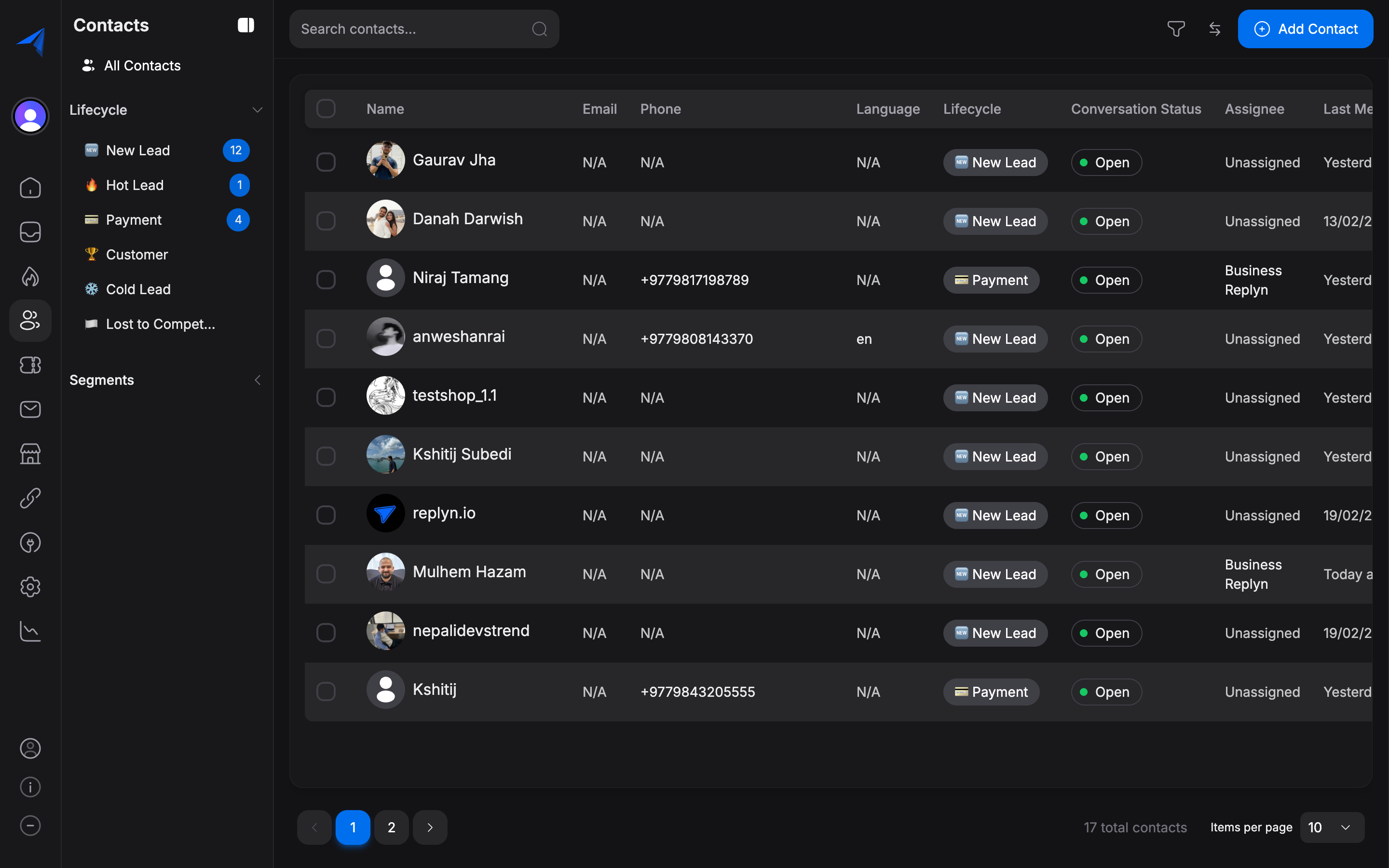
Navigate to Contacts and click the Segments tab (or button) at the top of the contact list.
Click Create Segment and give your segment a descriptive name (e.g., "Active WhatsApp Leads" or "Customers in Kathmandu").
Add one or more filter rules. Each rule consists of a field, an operator, and a value. You can combine rules with AND (all rules must match) or OR (any rule must match) logic.
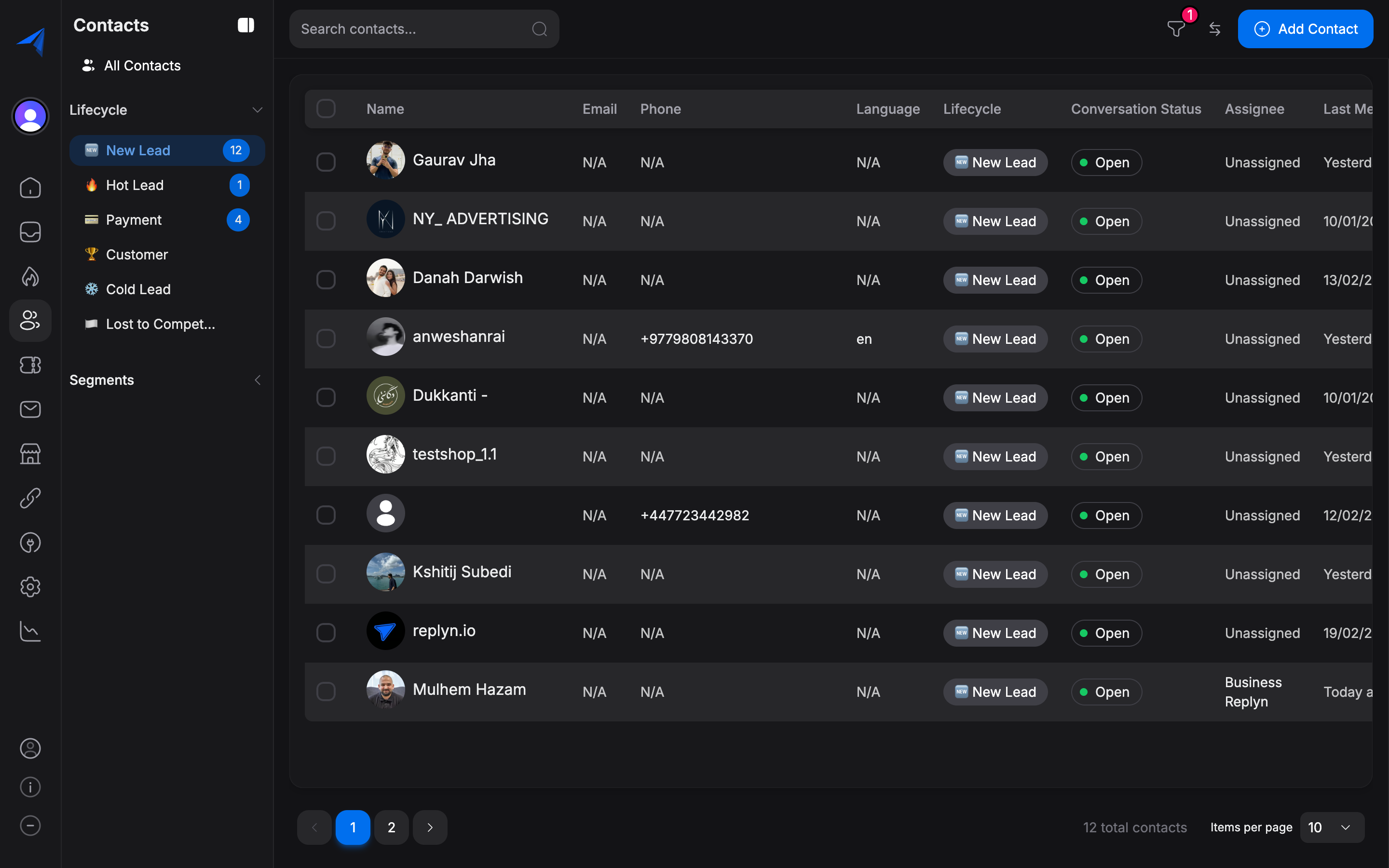
Preview the results to verify the segment includes the contacts you expect, then click Save Segment.
Available Filter Fields
You can build segment rules using any of the following fields:
| Field | Example Rule |
|---|---|
| Tags | Contact has tag "VIP" |
| Lifecycle Stage | Stage is "Lead" |
| Channel | Contacted via "WhatsApp" |
| Last Activity | Last active within 30 days |
| Created Date | Created after January 1, 2025 |
| Phone Number | Phone starts with "+977" |
| Email contains "@company.com" | |
| Custom Fields | City equals "Kathmandu" |
| Assigned Agent | Assigned to "Dr. Sharma" |
| Conversation Status | Has open conversation |
Custom fields are available as filter options only after you create them in Settings > Contacts > Custom Fields. Any custom field you add will automatically appear in the segment builder.
Using Segments in Broadcasts
Segments are especially powerful when combined with Broadcasts. Instead of manually selecting recipients each time, you can target a saved segment:
Select one or more saved segments from the dropdown. Replyn will calculate the current number of matching contacts.
Continue configuring and sending your broadcast. Only contacts who match the segment rules at the time of sending will receive the message.
Segments are dynamic. If a contact is added to your workspace after you create the segment but matches the rules, they will be included the next time the segment is evaluated (e.g., when a broadcast is sent).
Managing Segments
You can view, edit, and delete your saved segments from the Segments tab on the Contacts page.
- Edit — Click on a segment name to open the builder and modify its rules or rename it. Changes apply immediately.
- Duplicate — Create a copy of an existing segment to use as a starting point for a similar one.
- Delete — Remove a segment you no longer need. Deleting a segment does not affect the contacts themselves; it only removes the saved filter definition.