

File Management
Upload, organize, and manage files and media assets used across messages, templates, and your Replyn workspace.
The File Management section serves as a centralized library for all files and media assets in your Replyn organization. Upload images, documents, and other files here to use them across conversations, message templates, and broadcast campaigns.
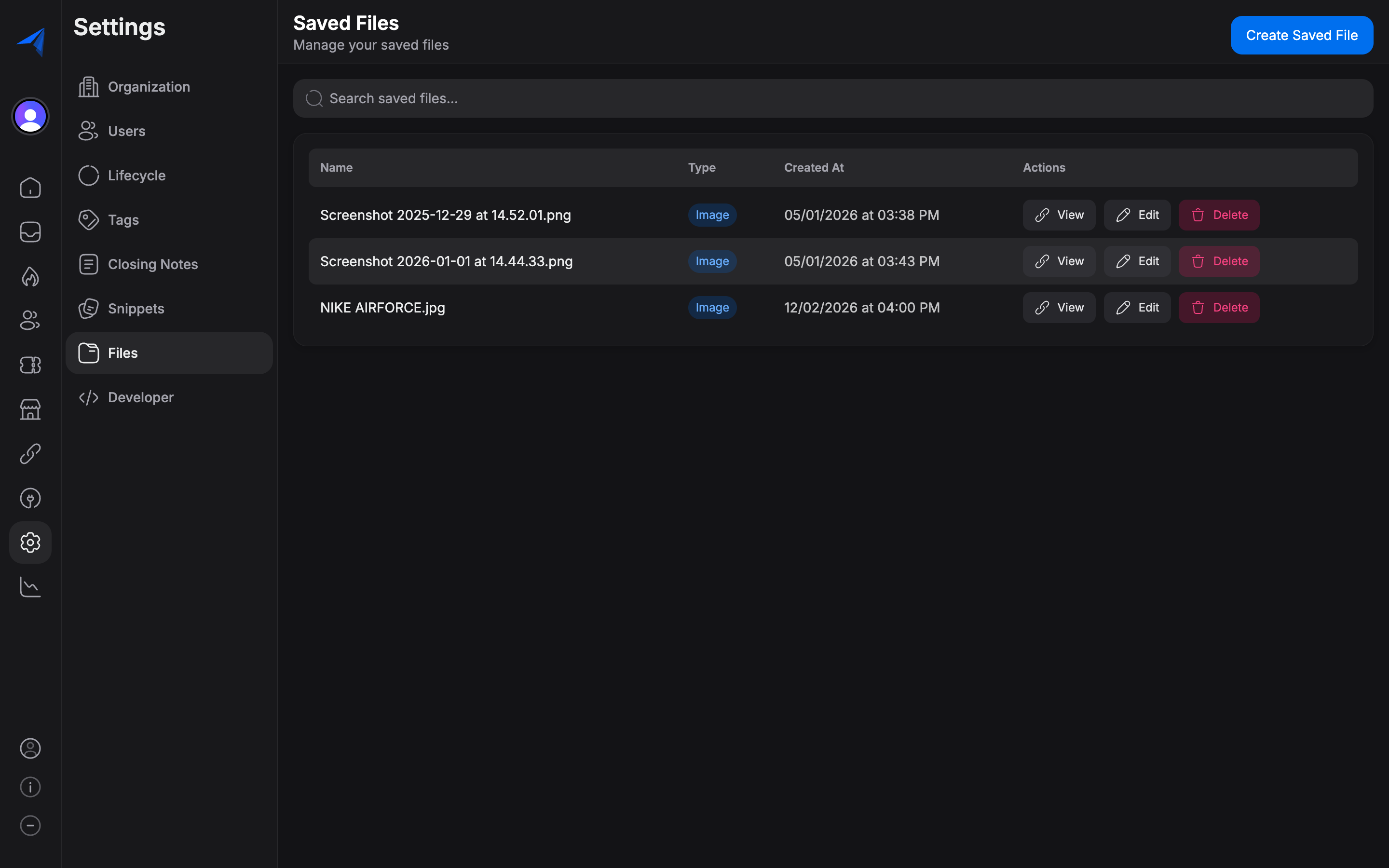
Uploading Files
Navigate to Settings > Files.
Click the Upload button or drag and drop files directly onto the page.
Select one or more files from your computer. Supported file types include images (PNG, JPG, GIF, SVG), documents (PDF, DOCX, XLSX), and media files (MP4, MP3).
Wait for the upload to complete. Each file will appear in the library once uploaded.

Individual file size limits and total storage quotas depend on your Replyn plan. Check your plan details for specific limits.
Managing the File Library
The file library displays all uploaded assets in a grid or list view. For each file, you can see:
- File name — The original name of the uploaded file.
- File type — The format (image, document, video, etc.).
- File size — The size of the file.
- Upload date — When the file was added to the library.
- Uploaded by — The team member who uploaded the file.
Searching and Filtering
Use the search bar to find files by name. You can also filter the library by file type (images, documents, media) to narrow down the results.
Deleting Files
To delete a file:
- Find the file in the library.
- Click the menu icon (three dots) on the file.
- Select Delete.
- Confirm the deletion.
Deleting a file from the library removes it permanently. If the file is referenced in any message templates or broadcast campaigns, those references will be broken. Verify that a file is not in active use before deleting it.
Using Files in Messages and Templates
Files from the library can be attached to conversations and used in message templates:
In Conversations
When composing a message in the inbox, click the attachment icon to open the file picker. You can choose from your file library or upload a new file directly.
In Message Templates
When creating or editing a WhatsApp message template or broadcast campaign, you can attach media from the file library. This is especially useful for sending product images, promotional materials, or documents.
In Broadcasts
Broadcast campaigns that include media attachments pull files from the file library. Select the appropriate file when configuring your broadcast message.
