

Quick Reply Snippets
Create, manage, and use pre-written reply templates to respond to customers faster in the Replyn inbox.
Snippets are pre-written message templates that your team can insert into conversations with a single shortcut. They eliminate repetitive typing, ensure consistent messaging, and help your team respond faster.
What Are Snippets?
A snippet is a saved block of text that can be quickly inserted into the message composer. Each snippet has:
- Name — A short identifier used to search for the snippet (e.g.,
greeting,order-status,appointment-confirm). - Content — The full message text that gets inserted into the composer when the snippet is selected.
Snippets are shared across your team, so any snippet created by one team member is available to everyone.

Snippets are different from WhatsApp message templates. Snippets are internal shortcuts that paste text into the composer. WhatsApp templates are externally approved message formats required for messaging outside the 24-hour window. Learn more about templates in Sending Messages.
Creating Snippets
You can create snippets from the Settings area of Replyn.
Navigate to Settings from the main sidebar menu.
Select Snippets from the settings menu.
Enter a name for the snippet. Choose something short and descriptive that your team will
easily remember (e.g., greeting, thanks, refund-policy).
Write the content of the snippet in the text area. This is the message that will be inserted into the composer. You can write multi-line messages and include any text you would normally type in a conversation.
Click Save to create the snippet. It is immediately available for use across the inbox.

Example Snippets
Here are some common snippets to get your team started:
| Name | Content |
|---|---|
greeting | Hi! Thank you for reaching out to us. How can we help you today? |
thanks | Thank you for your patience. Is there anything else we can help you with? |
order-status | Let me check the status of your order. Could you please share your order number? |
appointment-confirm | Your appointment has been confirmed. We look forward to seeing you! |
closing | Glad we could help! Do not hesitate to reach out if you need anything else. Have a great day! |
Using Snippets in Conversations
Once snippets are created, any team member can use them while composing messages.
Type / (forward slash). A dropdown list of available snippets appears immediately.
Start typing the snippet name to filter the list (e.g., type /greet to find the greeting
snippet). You can also scroll through the list.
Click on the snippet or press Enter to insert its content into the composer. The / command
is replaced with the full snippet text.
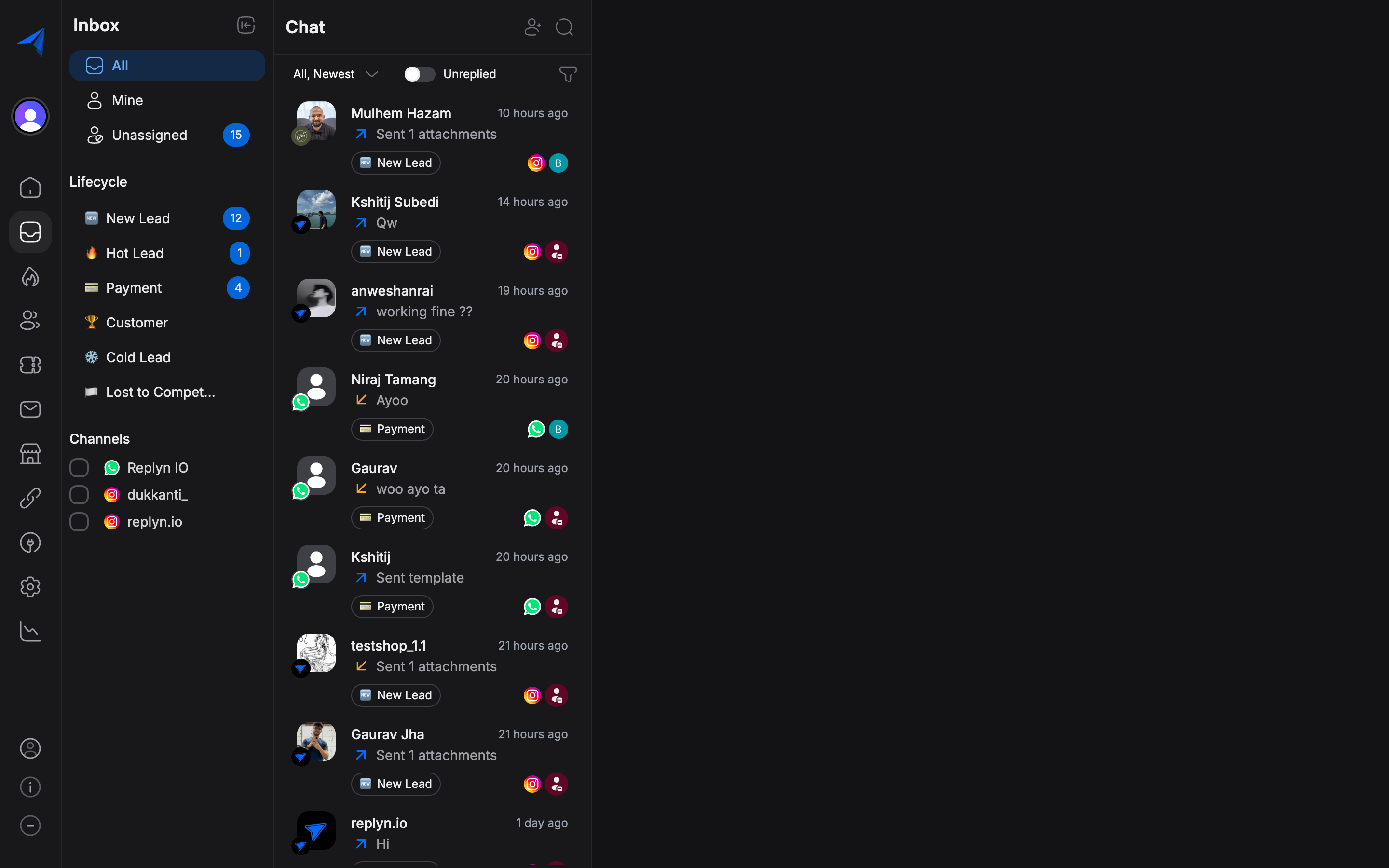
The snippet picker searches across both snippet names and content, so you can find the right snippet even if you do not remember its exact name.
Managing Snippets in Settings
All snippet management happens in the Settings area.
Editing a Snippet
Find the snippet you want to edit and click on it, or click the Edit button next to it.
Deleting a Snippet
Confirm the deletion when prompted. The snippet is permanently removed and can no longer be used in conversations.
Deleting a snippet does not affect messages that were already sent using that snippet. Only future usage is impacted.
Who Can Manage Snippets?
Snippet management permissions depend on user roles:
- Admins and Managers can create, edit, and delete all snippets.
- Agents can use snippets in conversations but cannot create or modify them unless granted permission by an admin.
For more information on user roles and permissions, see User Roles.