

Sending Messages
Learn how to compose text messages, send attachments, use WhatsApp templates, and leverage quick reply snippets in the Replyn inbox.
The Replyn inbox provides several ways to communicate with your customers. You can type out text messages, attach media files, use pre-approved message templates, and insert quick reply snippets to speed up your workflow.
Composing Text Messages
The message composer sits at the bottom of every open conversation.
Type your message. The composer supports multi-line text — press Shift + Enter to add a new line.
Press Enter or click the Send button to send your message. The message appears in the conversation thread immediately with a Sent status indicator.
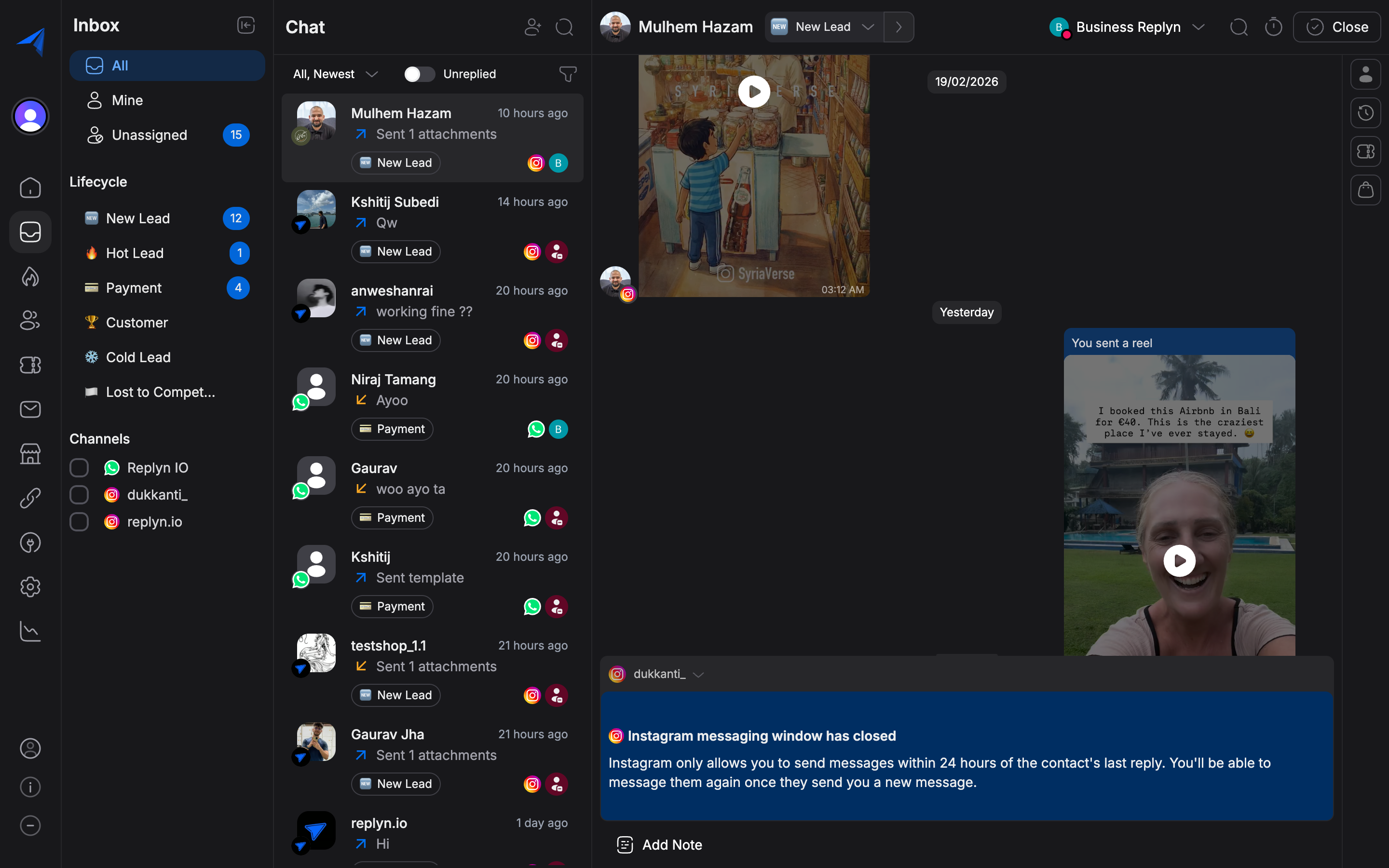
The composer adapts to the channel. For example, WhatsApp conversations support emoji and rich media, while SMS conversations are limited to plain text.
Sending Attachments
You can send images, documents, audio files, and videos directly within a conversation.
Open a conversation and click the attachment icon (paperclip) in the message composer.
Select the file type you want to send: - Image — PNG, JPG, JPEG, WEBP (up to 5 MB) - Document — PDF, DOC, DOCX, XLS, XLSX (up to 25 MB) - Audio — MP3, OGG, AAC (up to 16 MB)
- Video — MP4, 3GP (up to 16 MB)
Choose the file from your device. A preview of the attachment appears in the composer.
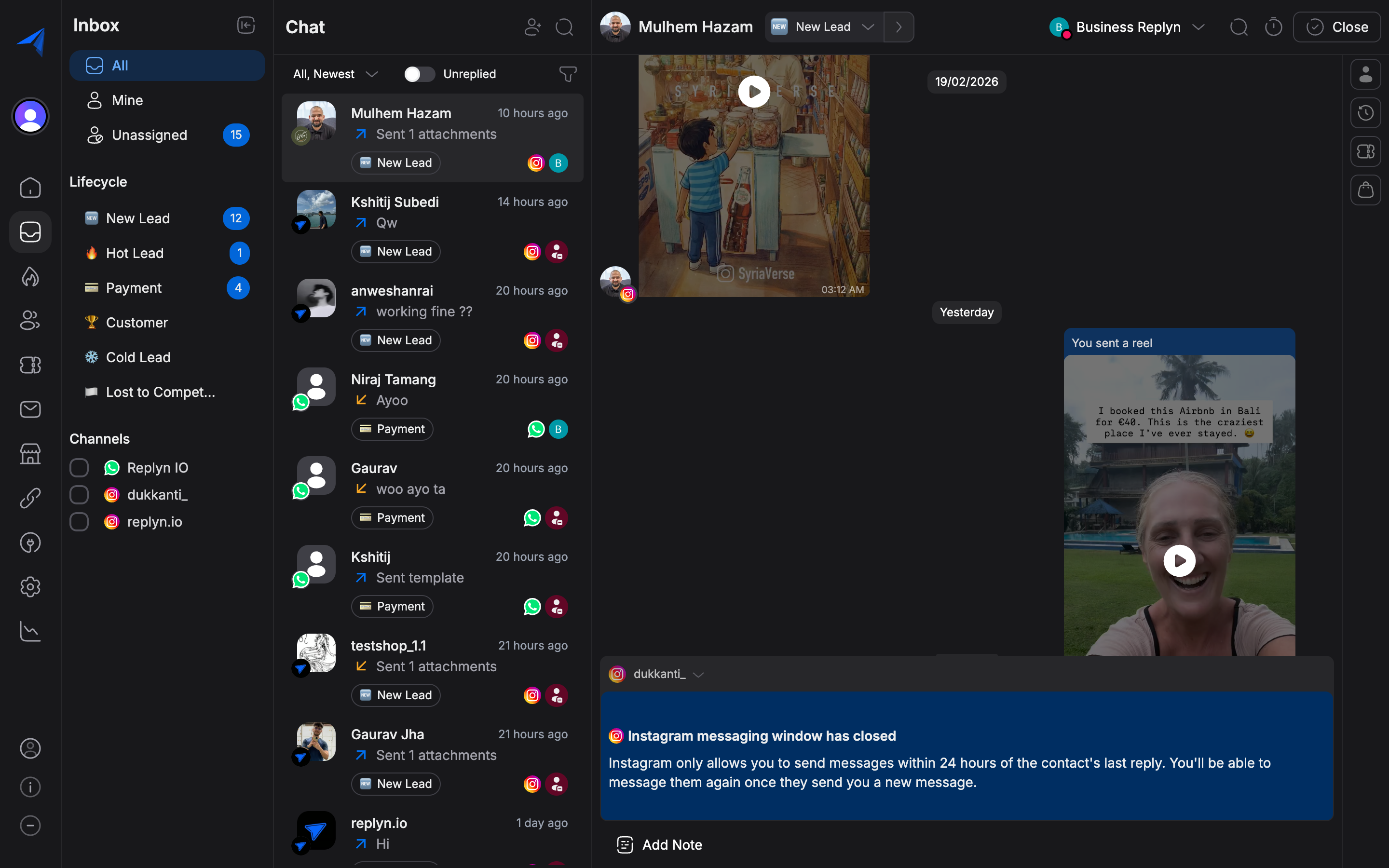
File size limits vary by channel. WhatsApp enforces strict limits on media sizes. If a file exceeds the limit, the upload will be rejected with an error message.
Using Message Templates
Message templates are pre-approved message formats required by WhatsApp for initiating conversations or messaging outside the 24-hour response window. Templates are created and approved through your WhatsApp Business API provider before they can be used in Replyn.
Open a conversation. If the 24-hour messaging window has expired, the composer will show a prompt indicating that only template messages can be sent.
Click the Template button (document icon) in the composer toolbar.
Browse or search for the template you want to use. Templates are organized by category (e.g., marketing, utility, authentication).
Select a template. If the template contains dynamic variables (e.g., {{1}} for customer name, {{2}} for order number), fill in the values in the provided input fields.
Preview the completed template message to verify the content.
Click Send Template to deliver the message. The template message appears in the conversation thread with a template indicator.
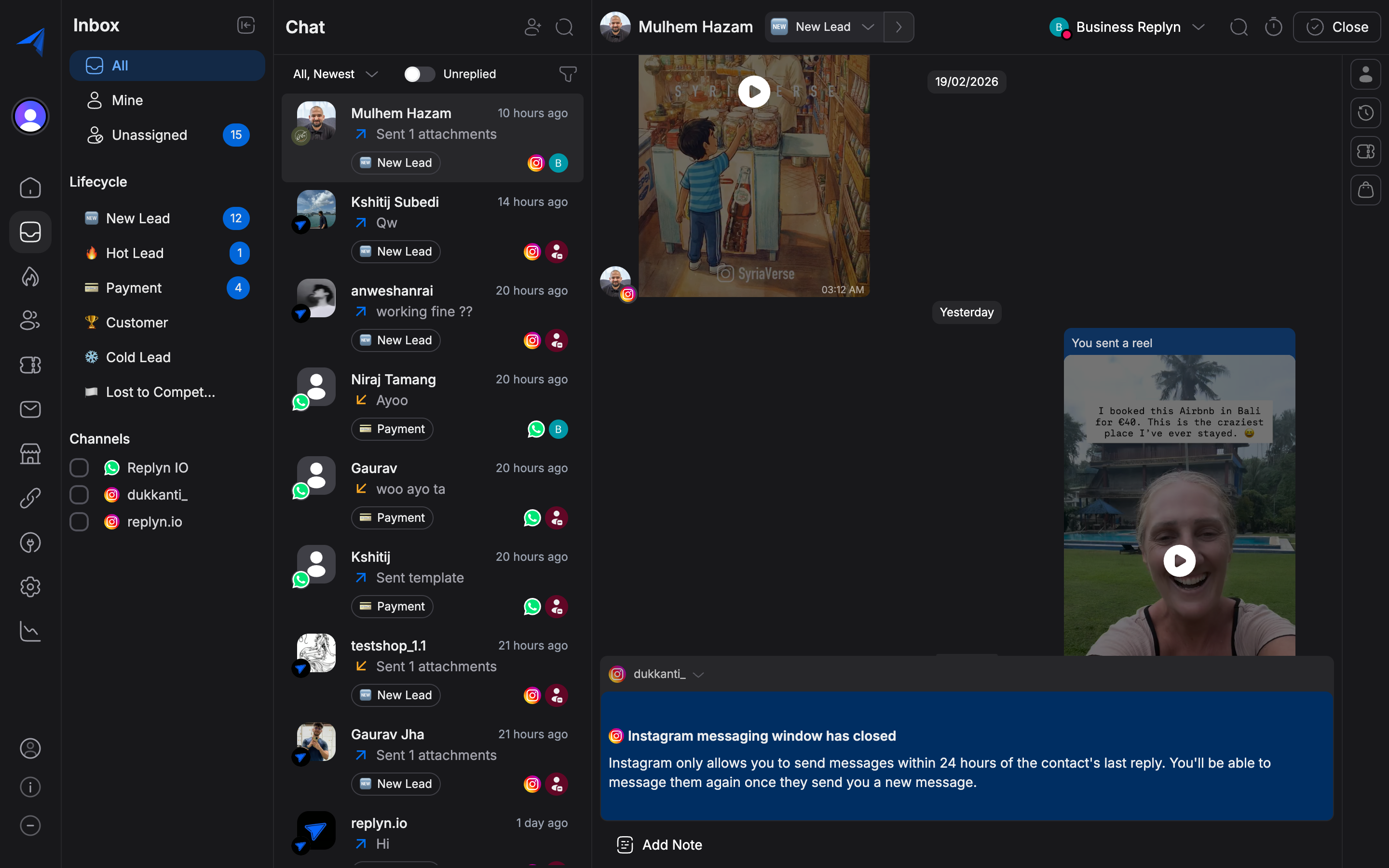
Template messages are only available for WhatsApp conversations. Other channels (Instagram, Facebook, TikTok) do not require templates and allow free-form messaging at any time.
Quick Replies with Snippets
Snippets are pre-written reply templates that your team can insert into conversations with a keyboard shortcut, eliminating the need to type repetitive responses.
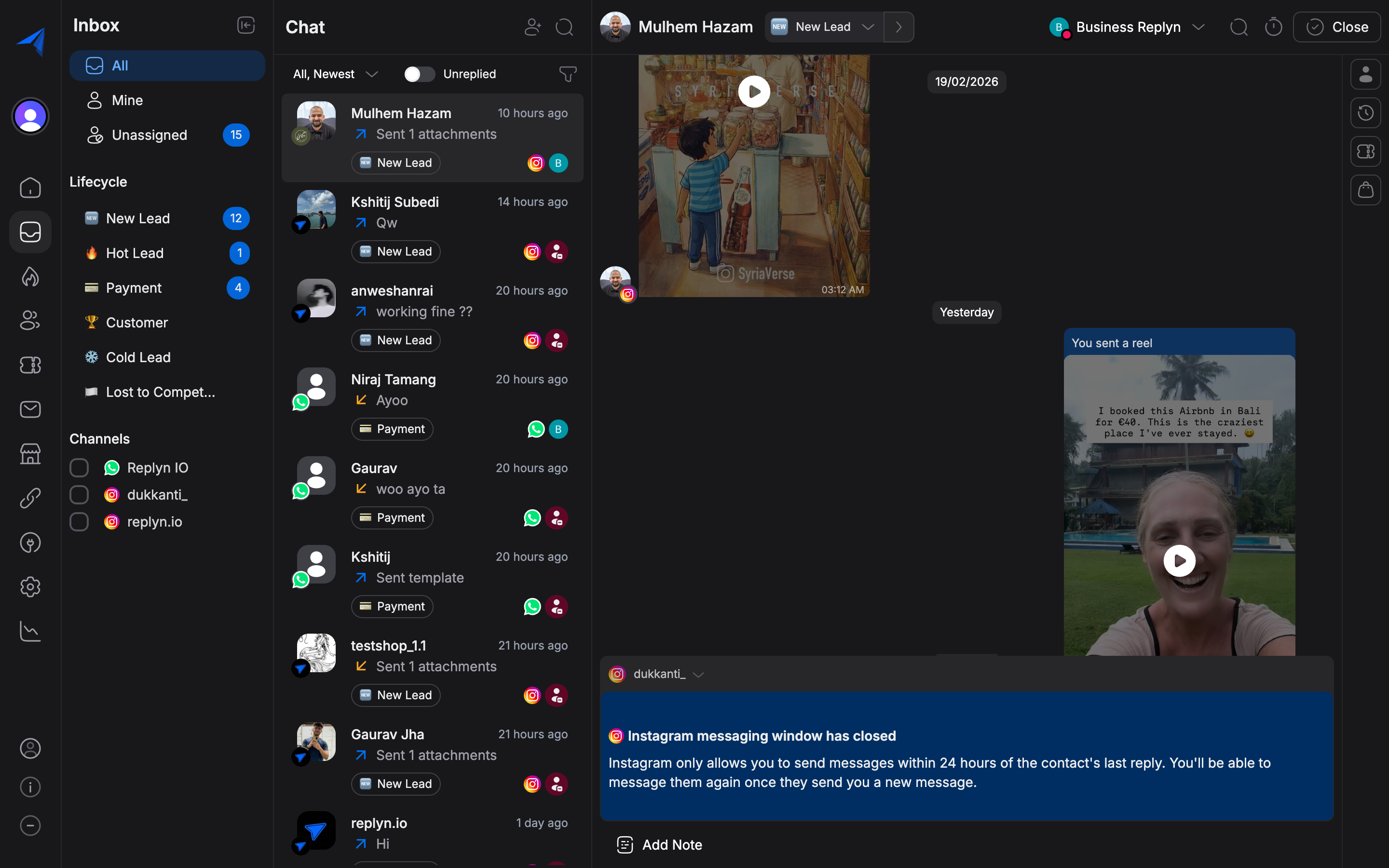
Type / (forward slash) to open the snippet picker. A dropdown list of available snippets
appears.
Search for a snippet by typing its name or browse the list. For example, typing /greeting
would filter snippets to show your greeting templates.
Click on the desired snippet or press Enter to insert it into the composer. The snippet text replaces the shortcut command.
Edit the inserted text if needed, then press Enter or click Send to deliver the message.
To learn how to create and manage snippets, see Quick Reply Snippets.