

Lifecycle Board
Use the Kanban-style lifecycle board to visually manage leads through pipeline stages with drag-and-drop.
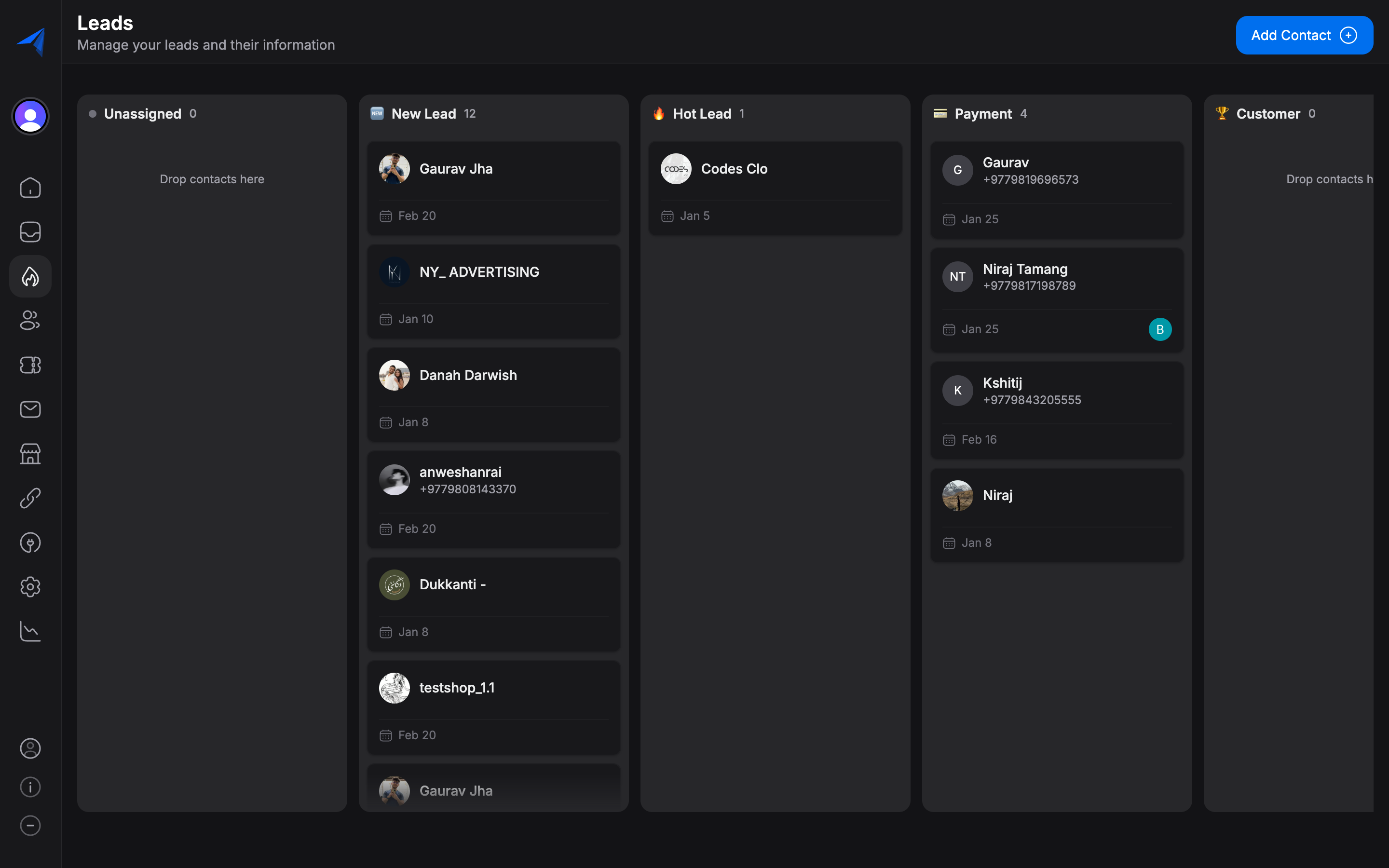
The Lifecycle Board is a visual, Kanban-style interface that displays your leads as cards organized into columns by lifecycle stage. It gives your team a clear picture of the pipeline at a glance and lets you move leads through stages with a simple drag-and-drop.
Understanding the Board
Each column on the board represents a lifecycle stage (e.g., Lead, Qualified, Negotiation, Customer). The columns are ordered left to right to reflect the natural progression of your pipeline. Each card represents a contact in that stage and shows key information such as the contact's name, phone number, assigned agent, and tags.
The columns on the Lifecycle Board are determined by your lifecycle stage configuration. To add, remove, rename, or reorder stages, go to Settings > Contacts > Lifecycle. See Contact Lifecycle for details.
Dragging Leads Between Columns
Moving a lead to a different stage is as simple as dragging their card from one column to another.
Find the lead you want to move on the board.
Click and hold the lead card, then drag it to the target column.
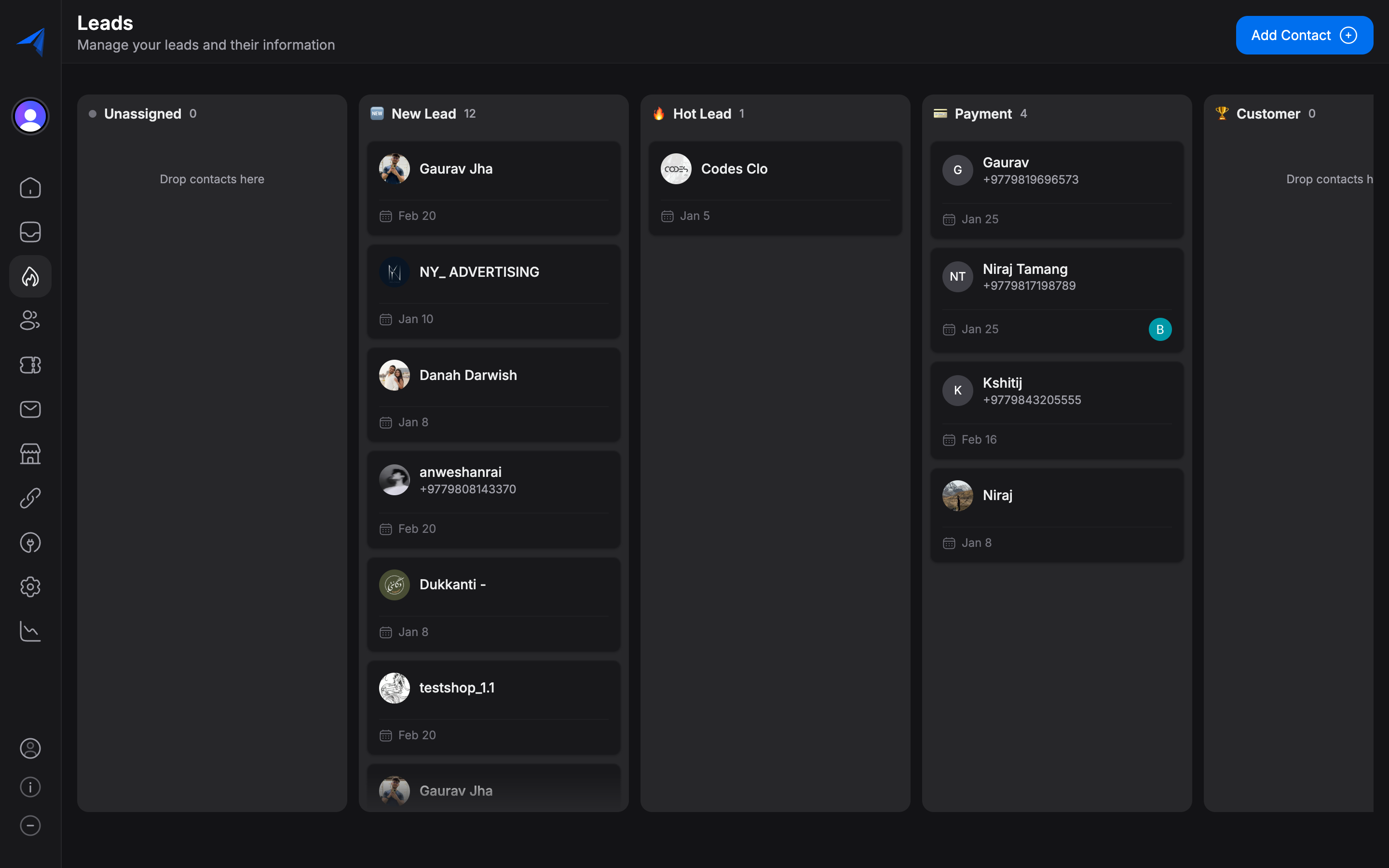
Release the card in the new column. The lead's lifecycle stage is updated immediately, and any automations tied to that stage transition will trigger automatically.
Converting Leads to Customers
Converting a lead means moving them to the Customer stage (or your equivalent post-conversion stage). You can do this in two ways:
On the Lifecycle Board, drag the lead card to the Customer column. The contact's lifecycle stage updates immediately, and they will no longer appear in the Leads module.
Converted contacts are not deleted. They remain in your Contacts database with all their history intact. You can find them at any time by searching or filtering by the Customer stage in the Contacts list.
Filtering the Board
The Lifecycle Board supports several filters to help you focus on the leads that matter most:
- Assigned Agent — Show only leads assigned to a specific team member. Useful for individual pipeline reviews.
- Tags — Filter by one or more tags (e.g., show only "VIP" leads or leads tagged with a specific campaign).
- Channel — Show leads from a specific communication channel (WhatsApp, Instagram, etc.).
- Date Range — Filter by when the lead was created or when they last had activity.
- Search — Use the search bar to quickly find a specific lead by name or phone number.
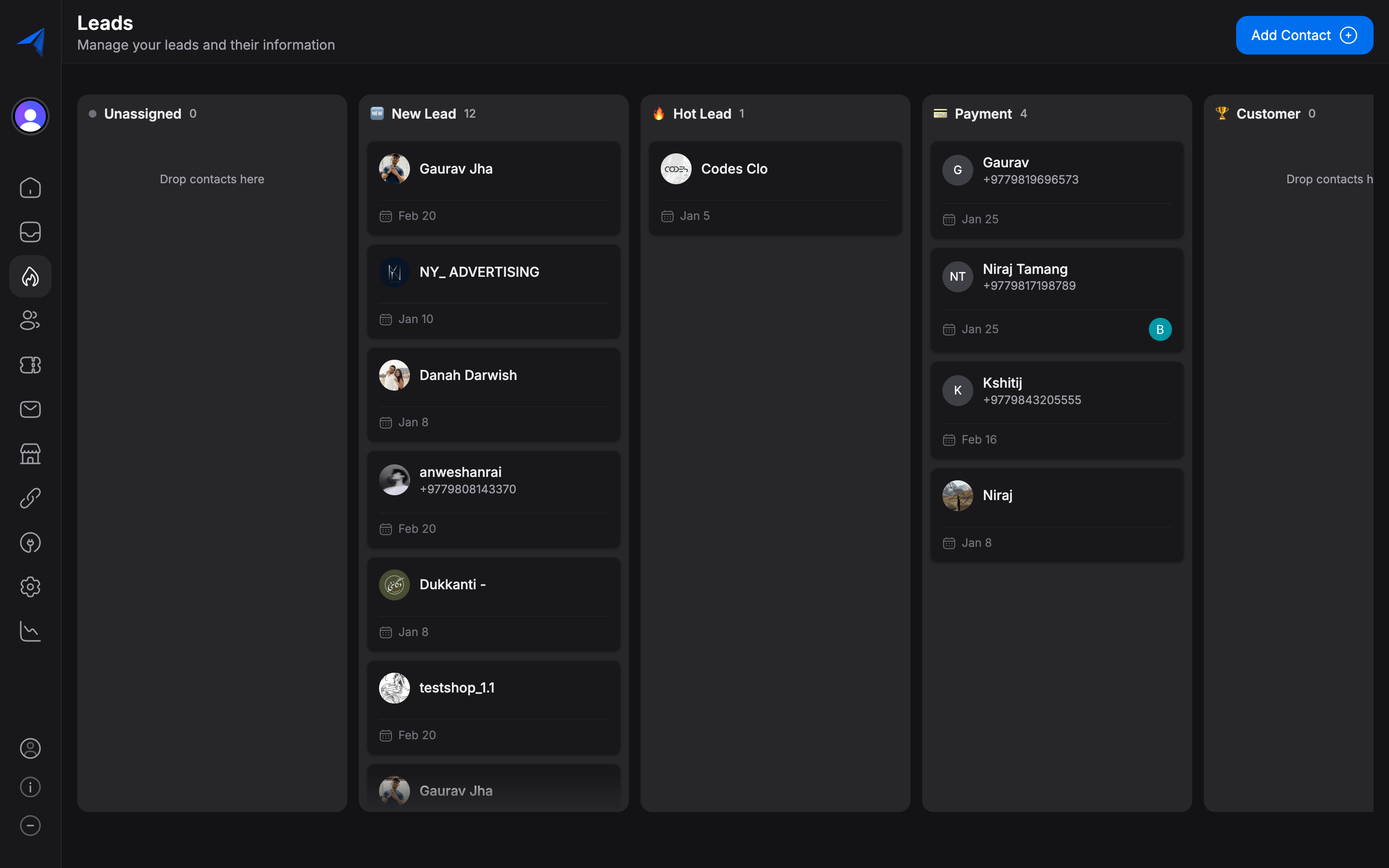
The board updates in real time to show only the leads that match your filters. The count in each column header reflects the filtered total.
Tips for Using the Lifecycle Board
- Review regularly — Schedule a daily or weekly pipeline review with your team using the board to keep deals moving.
- Use tags for context — Tag leads with campaign names, product interests, or priority levels so you can filter the board quickly.
- Watch for stale leads — Leads that sit in the same column for too long may need attention. Use the date filter to spot leads with no recent activity.
- Customize your stages — If the default stages do not match your workflow, add custom stages in Settings > Contacts > Lifecycle to reflect your actual process.