

Creating Your Account
Step-by-step guide to signing up for Replyn, verifying your email, setting up your organization, and inviting your team.
This guide walks you through the full account creation process — from your initial sign-up to inviting your first team members.
Account Setup
Sign up for Replyn
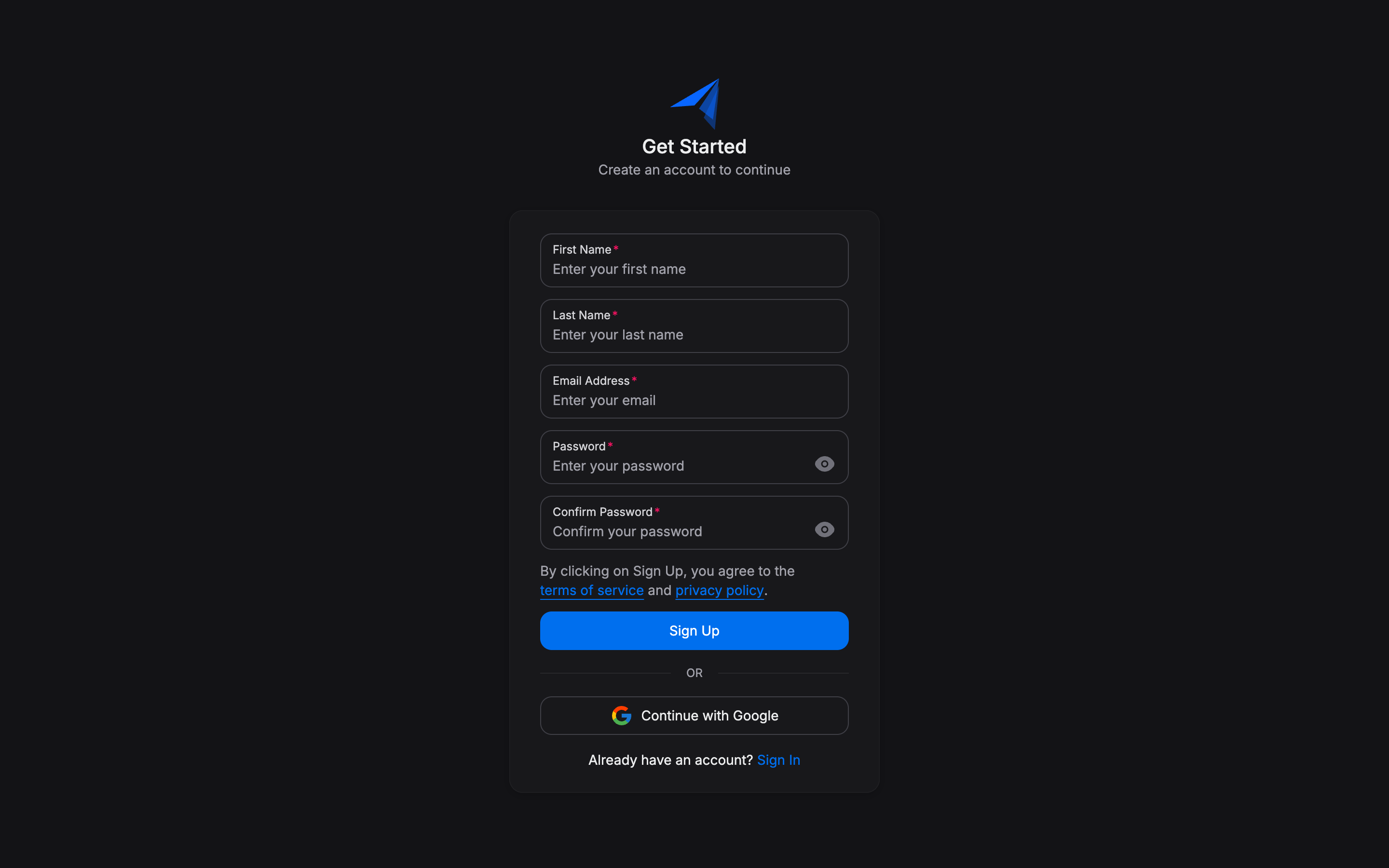
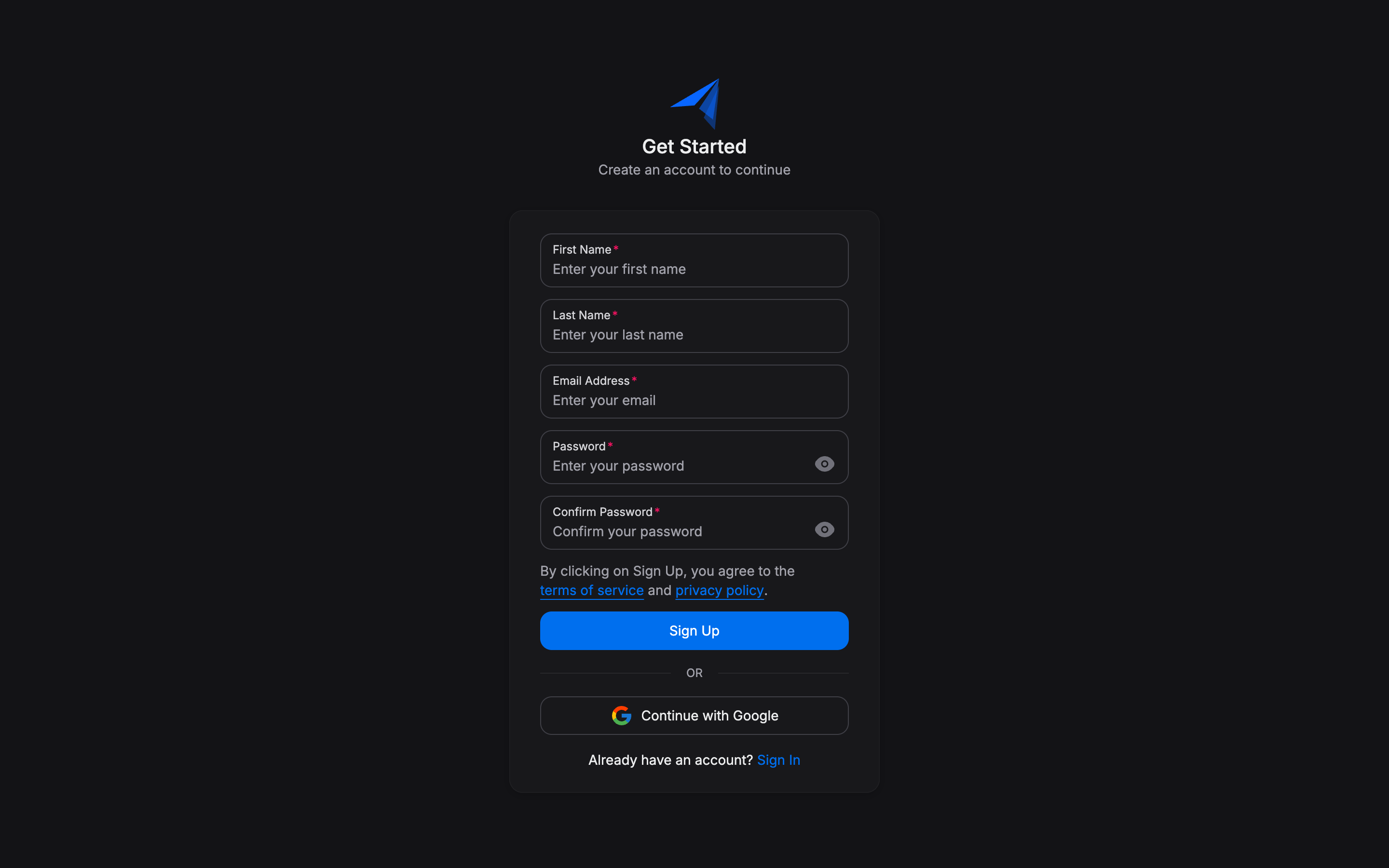
Go to app.replyn.io/auth/sign-up and enter your full name, email address, and a strong password. You can also sign up using your Google account for faster onboarding.
Password requirements
Your password must be at least 8 characters long and include a mix of uppercase letters, lowercase letters, and numbers.
Verify your email address
After submitting the sign-up form, check your inbox for a verification email from Replyn. Click the verification link to confirm your email address and activate your account.

Didn't receive the email?
Check your spam or junk folder. If the email still hasn't arrived after a few minutes, click the Resend verification email link on the verification screen.
Create your organization
Once your email is verified, you will be prompted to create your organization. Fill in the following details:
- Organization name — The name of your business (e.g., "Sunrise Dental Clinic" or "GlowUp Store").
- Business type — Choose either Clinic or Ecommerce. This selection determines which modules and features are enabled for your workspace.
- Country and timezone — Used for scheduling, reporting, and message delivery windows.
Clinic vs. Ecommerce
Selecting Clinic enables appointment scheduling, patient records, and clinical workflow features. Selecting Ecommerce enables product catalogs, order management, and storefront integrations. You can adjust your enabled modules later in Settings > Organization.
Invite your team members
After creating your organization, navigate to Settings > Team Members and click Invite Member. Enter the email addresses of the people you want to invite and assign each person a role:
- Admin — Full access to all features and settings.
- Member — Standard access to CRM, messaging, and operational modules.
- Agent — Limited access, restricted to assigned conversations and contacts.

Invited users will receive an email with a link to join your organization. They can sign up or log in with their existing Replyn account.
Tip
You can always change a team member's role later from the Team Members settings page. See User Roles & Permissions for a detailed breakdown of what each role can do.
Next Steps
Your account is ready. Head over to Navigating the Dashboard to learn your way around Replyn, or jump straight to Channels to connect WhatsApp, Instagram, or another messaging platform.