

Navigating the Dashboard
A guided tour of the Replyn dashboard — sidebar navigation, core modules, and the key metrics that help you monitor your business at a glance.
Once you have signed in, the Replyn dashboard is your central hub for managing customer relationships, conversations, and operations. This page explains the layout and how to find what you need.
Sidebar Navigation
The left sidebar provides quick access to every major module in Replyn. Depending on your organization's business type (Clinic or Ecommerce), some items may differ.

| Module | Description |
|---|---|
| Inbox | Your unified messaging inbox. View and respond to conversations from WhatsApp, Instagram, Facebook, TikTok, and other connected channels. |
| Contacts | The full CRM contact list. Create, view, edit, and segment your customers and leads. |
| Leads | Track potential customers through your sales pipeline with stages, tags, and follow-up reminders. |
| Tickets | Manage support requests with statuses, priorities, and assignees to keep your team organized. |
| Broadcasts | Send bulk messages to contact segments across WhatsApp and other channels. |
| Channels | Configure and manage your connected messaging channels — WhatsApp, Instagram, Facebook, TikTok, and more. |
| Reports | Access analytics dashboards for conversations, response times, team performance, and revenue metrics. |
| Settings | Manage your organization profile, team members, roles, integrations, and billing. |
Business-specific modules
If your organization type is Clinic, you will also see modules for Appointments and Patient Records. If your type is Ecommerce, you will see Products and Orders in the sidebar.
Dashboard Overview
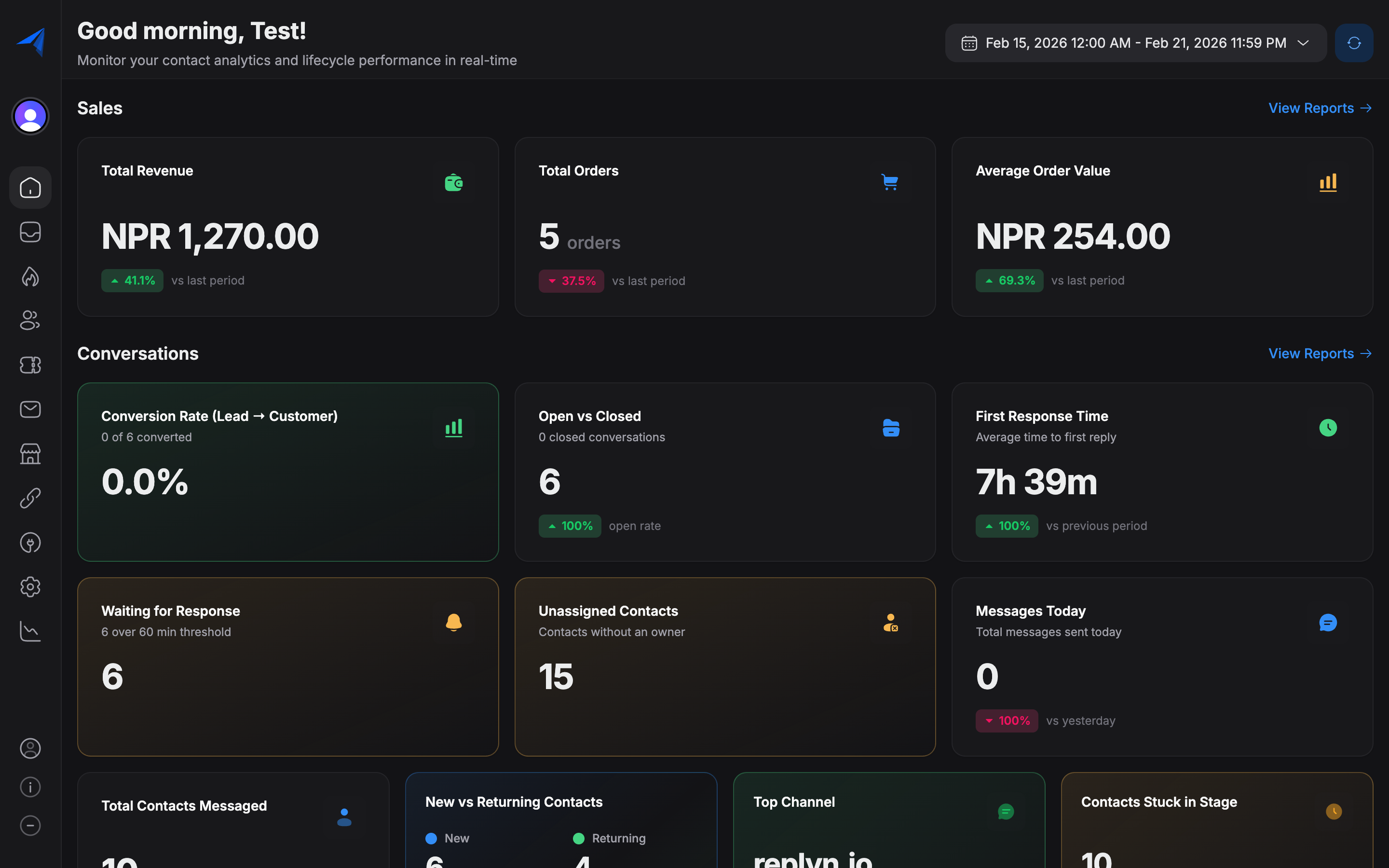
The main dashboard screen presents a high-level summary of your business activity. It is the first thing you see after logging in.
Key Widgets and Metrics
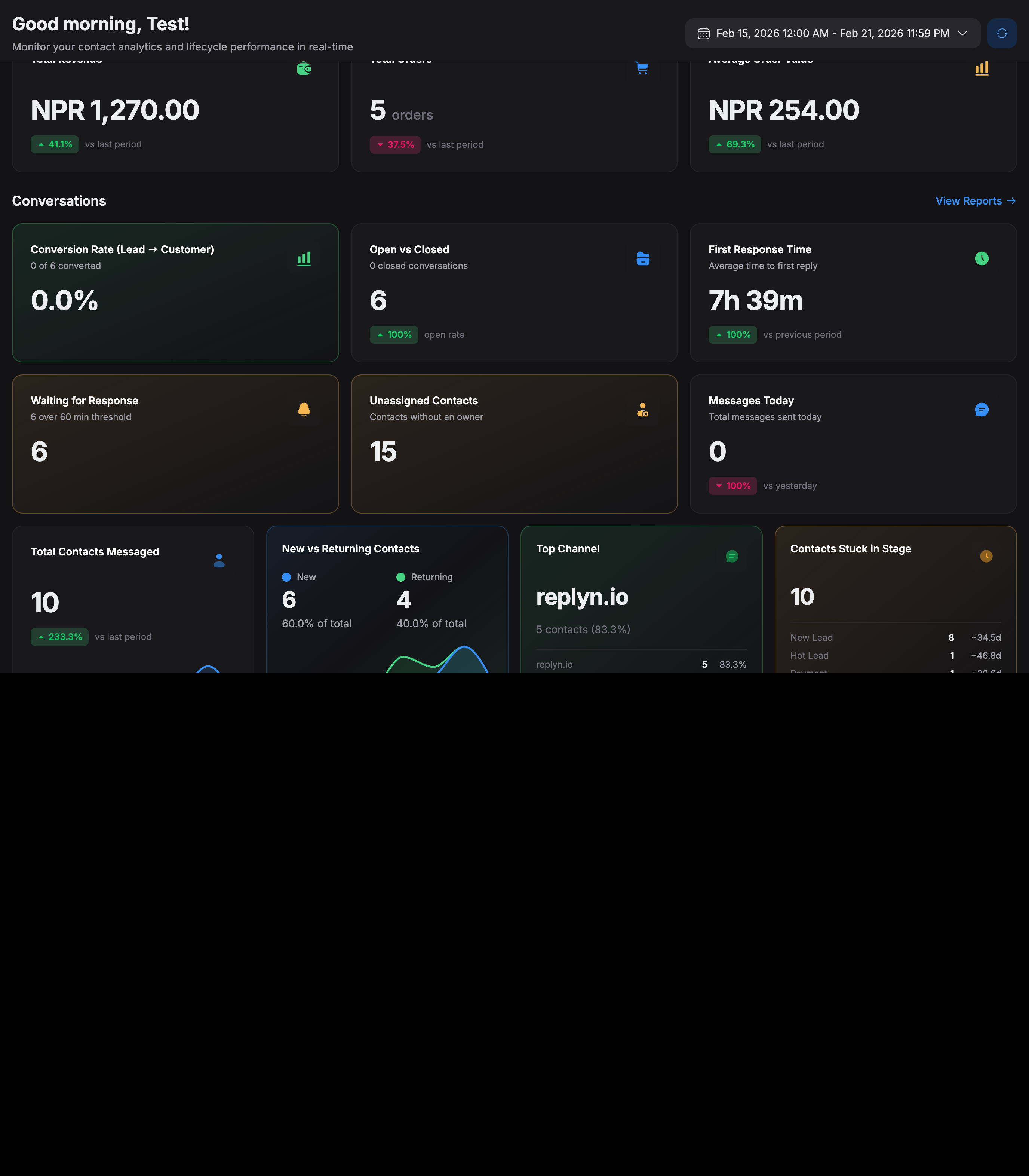
The dashboard is organized into widgets that surface the most important data:
- Open Conversations — The number of active, unresolved conversations across all channels. Click to jump directly into your inbox.
- Unassigned Messages — Messages that have not yet been assigned to a team member. Helps ensure no customer is left waiting.
- New Contacts Today — The count of contacts added to your CRM in the current day, either manually or through channel interactions.
- Response Time — Your team's average first-response time over the selected period. A lower number means faster customer engagement.
- Active Tickets — The number of open support tickets, broken down by priority level.
- Recent Activity Feed — A chronological list of the latest events: new messages, ticket updates, contact changes, and more.
Filtering and Date Ranges
Use the date range selector at the top of the dashboard to adjust the reporting window. You can choose from preset ranges (Today, Last 7 Days, Last 30 Days) or define a custom date range. All widgets update in real time to reflect the selected period.
Quick Actions
The top navigation bar includes shortcuts for common tasks:
- New Conversation — Start a new outbound conversation with a contact.
- Search — Use the global search bar (or press
Ctrl + K/Cmd + K) to find contacts, conversations, tickets, or settings instantly. - Notifications — View alerts for new messages, ticket assignments, and system events.
Next Steps
Now that you know your way around the dashboard, learn about the different access levels your team members can have in User Roles & Permissions.