

Managing Tickets
Learn how to track ticket progress, switch between board and list views, filter tickets, update statuses, and collaborate with comments.
Once tickets are created, managing them effectively is key to delivering great customer support. Replyn provides a flexible ticket dashboard with multiple views, powerful filtering, and collaboration features to keep your team organized.
Ticket Status Flow
Every ticket in Replyn follows a four-stage lifecycle. Moving tickets through these stages gives your team a clear picture of where every issue stands.
Open --> In Progress --> Resolved --> Closed| Status | Meaning |
|---|---|
| Open | The ticket has been created but work has not started yet. |
| In Progress | A team member is actively working on the issue. |
| Resolved | The issue has been addressed and a solution has been provided. |
| Closed | The ticket is fully complete and no further action is needed. |
A ticket moves from Resolved to Closed once you confirm the customer's issue is fully settled. If a customer responds with a follow-up, you can reopen a resolved ticket back to In Progress.
Updating Ticket Status
To change a ticket's status:
- Open the ticket from the dashboard.
- Click the Status dropdown at the top of the ticket detail view.
- Select the new status from the available options.
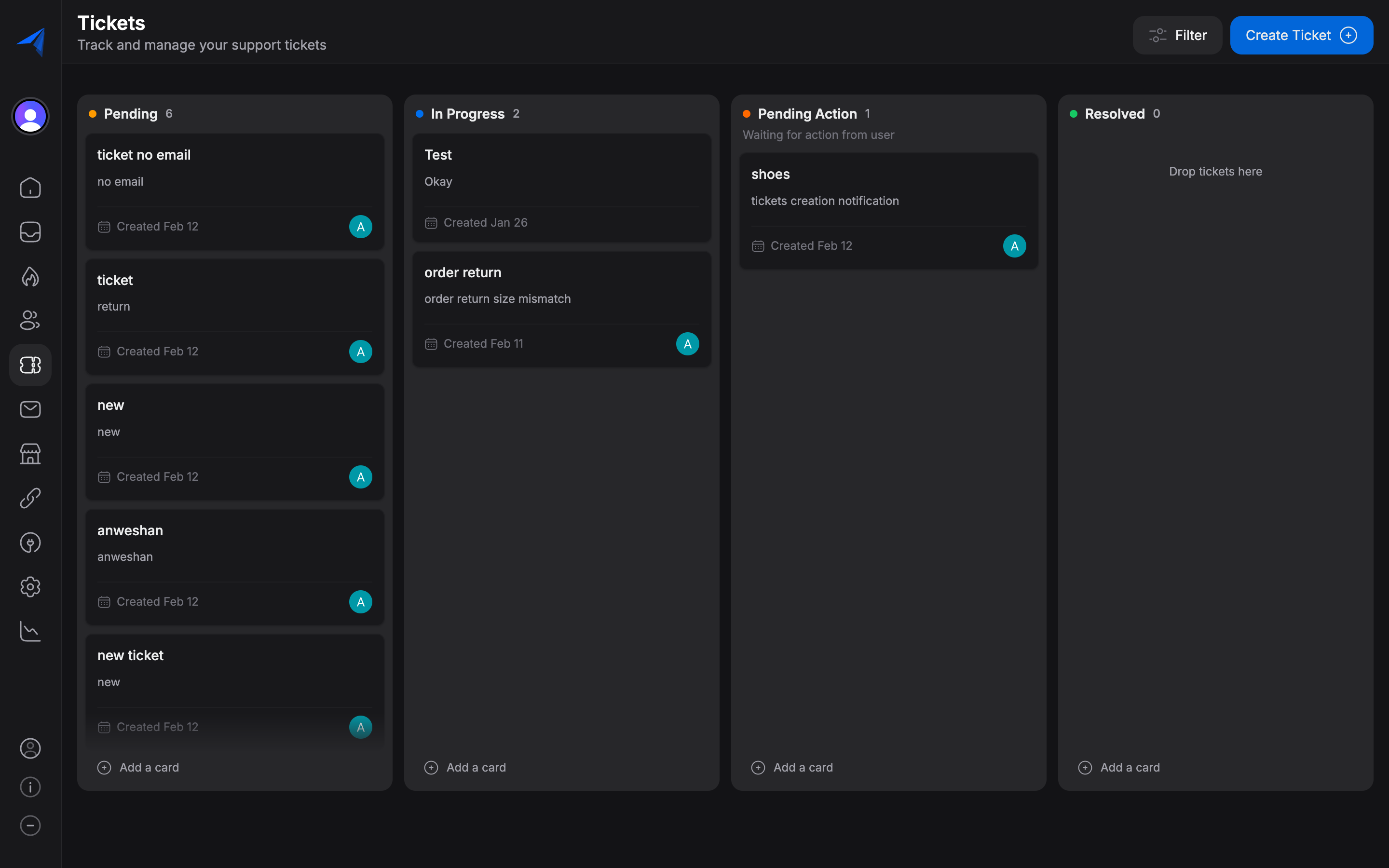
You can also drag tickets between columns in the Board view to update their status visually.
Board View vs. List View
Replyn offers two ways to view your tickets, so you can choose the layout that works best for your workflow.
Board View (Kanban)
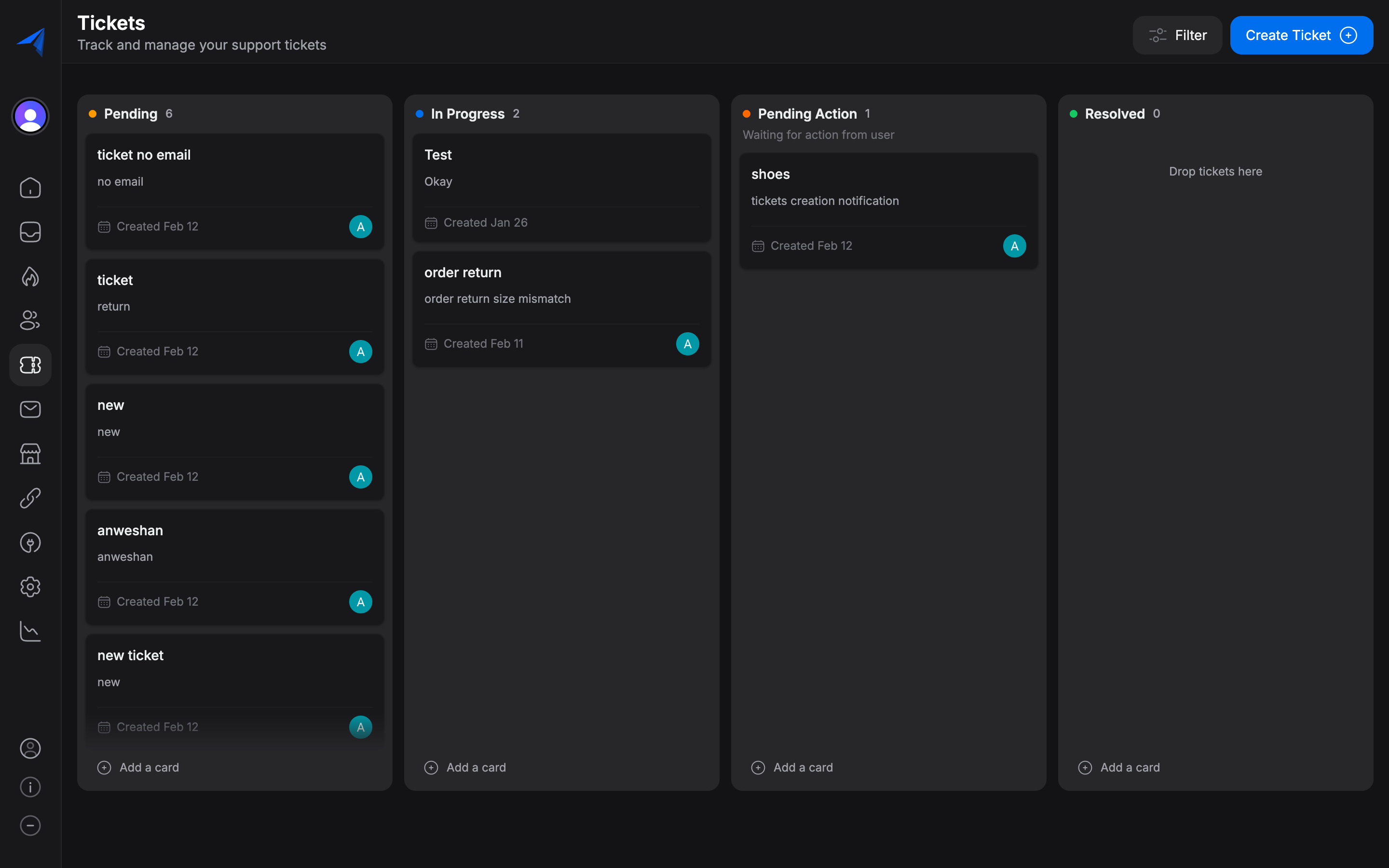
The board view displays tickets as cards organized into columns by status. This is ideal for teams that prefer a visual, drag-and-drop workflow.
- Each column represents a status: Open, In Progress, Resolved, and Closed.
- Drag and drop tickets between columns to update their status.
- Cards show the ticket title, assignee, priority, and creation date at a glance.
List View
The list view displays tickets in a table format with sortable columns. This is useful when you need to scan many tickets quickly or sort by specific fields.
- Sort by title, status, priority, assignee, or date created.
- Click any row to open the ticket details.
- Compact layout that shows more tickets at once.

You can switch between views using the toggle in the top-right corner of the tickets dashboard.
Filtering and Searching Tickets
As your ticket volume grows, filtering becomes essential. Replyn provides several ways to narrow down your ticket list.
Quick Filters
Use the filter bar at the top of the dashboard to filter tickets by:
- Status — Show only tickets in a specific stage (e.g., Open, In Progress).
- Priority — Filter by Urgent, High, Medium, or Low priority.
- Assignee — View tickets assigned to a specific team member.
Search
Use the search bar to find tickets by title or description keywords. This is helpful when you need to locate a specific ticket quickly.

Combine multiple filters to create precise views. For example, filter by Status: Open and Priority: Urgent to see all critical issues that have not been started.
Adding Comments to Tickets
Comments allow your team to collaborate on tickets without leaving Replyn. Use comments to share updates, ask questions, or leave notes for the next person who works on the ticket.
How to Add a Comment
Open the ticket
Click on any ticket from the board or list view to open its detail panel.
Navigate to the comments section
Scroll down to the Comments section at the bottom of the ticket detail view.
Write and submit your comment
Type your comment in the text field and click Send. Your comment will appear in the ticket's activity timeline along with the timestamp and your name.

Comment Best Practices
- Document your actions — When you take an action on a ticket (e.g., contacted the customer, issued a refund), leave a comment so the rest of the team knows what happened.
- Tag relevant context — Reference order numbers, conversation links, or other details that help the next person understand the situation.
- Keep it professional — Comments are internal but may be reviewed during audits or quality checks.
Managing Your Personal Ticket Queue
To see only the tickets assigned to you, use the Assignee filter and select your name. This gives you a focused view of your personal workload.
Regularly review your assigned tickets and update their statuses. Stale tickets with outdated statuses make it harder for the team to understand the true state of your support queue.