

Creating Tickets
Learn how to create support tickets manually or from conversations, assign them to team members, and set priority levels.
Tickets can be created in two ways in Replyn: manually from the tickets section, or directly from a conversation in your inbox. Both methods give you full control over assignment, priority, and initial details.
Creating a Ticket from a Conversation
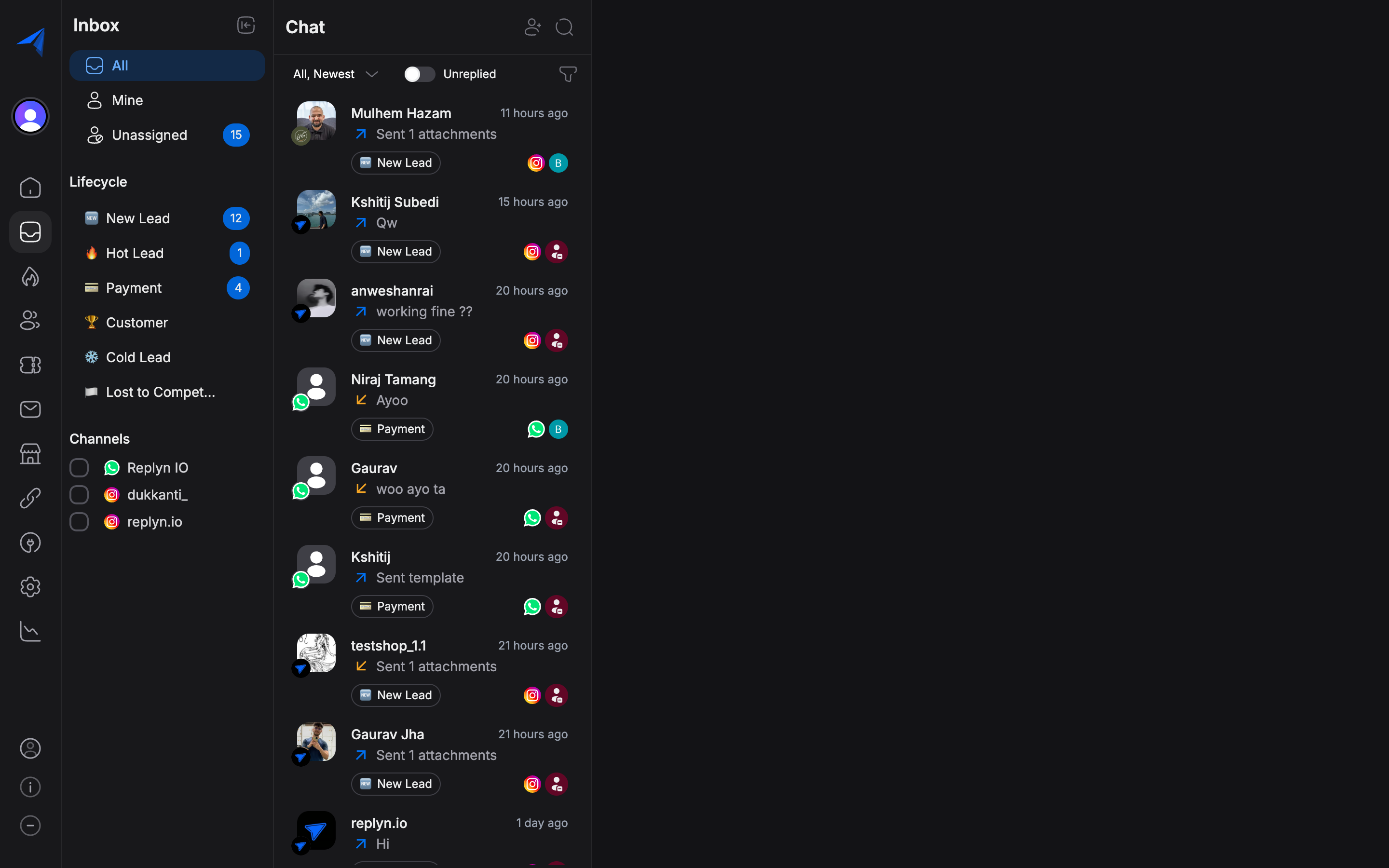
The most common way to create a ticket is directly from an ongoing conversation. This automatically links the ticket to the contact and conversation, preserving all context.
Open the conversation
Navigate to your Inbox and open the conversation that requires a ticket. This could be a customer reporting an issue, requesting a refund, or asking for help with an order.
Click "Create Ticket"
In the conversation panel, click the Create Ticket button in the actions toolbar. This opens the ticket creation form pre-filled with the contact's information.
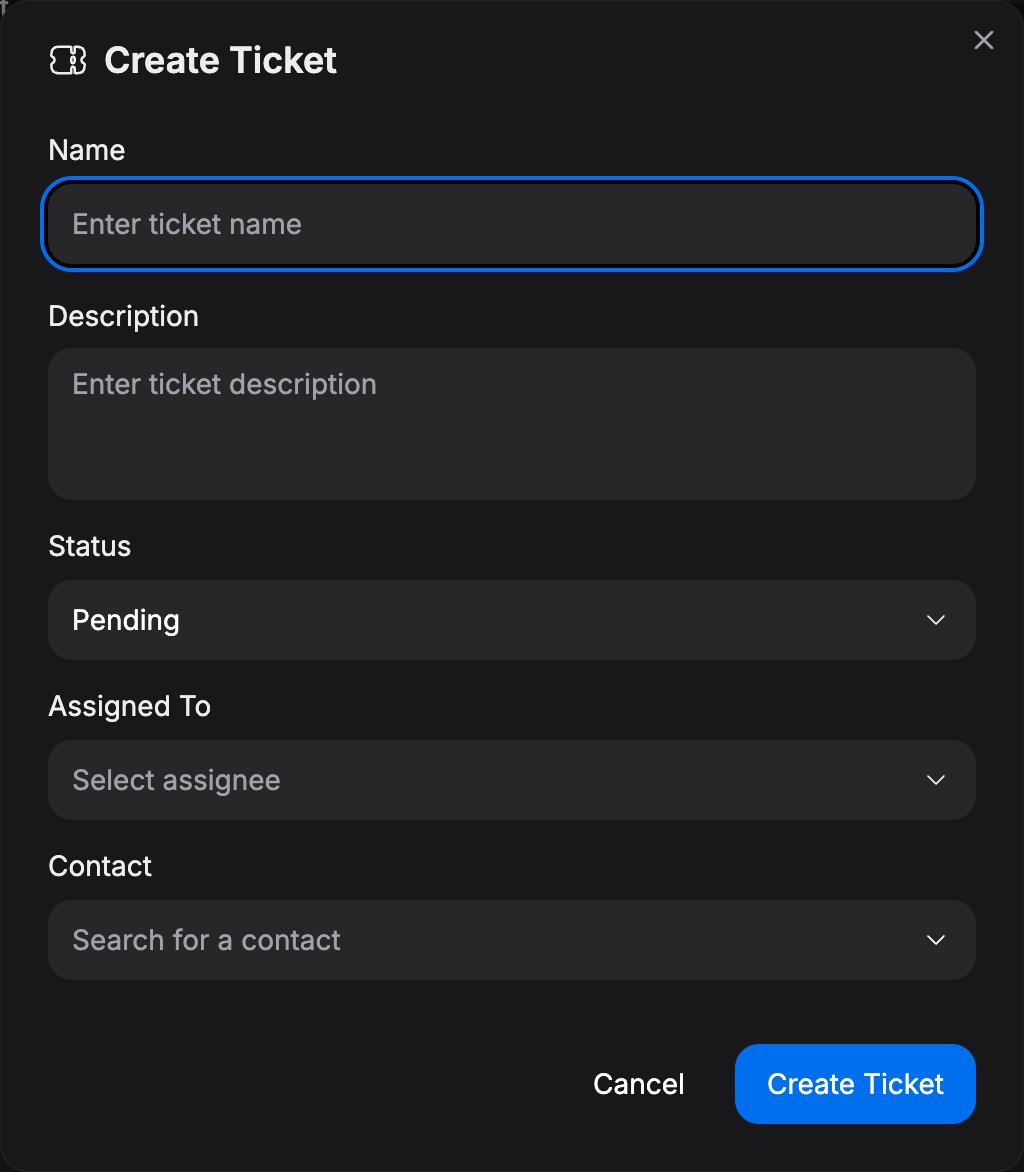
Fill in ticket details
Enter the following information:
- Title — A short summary of the issue (e.g., "Order #1234 arrived damaged").
- Description — Additional context or details about the problem.
- Assignee — The team member responsible for resolving this ticket.
- Priority — The urgency level for this ticket.
Submit the ticket
Click Create to submit the ticket. It will appear in the tickets dashboard with an Open status and will be linked to the originating conversation and contact.
Creating a Ticket Manually
You can also create tickets directly from the tickets section, without linking them to an existing conversation.
Navigate to Tickets
Click Tickets in the left sidebar to open the tickets dashboard.
Click "New Ticket"
Click the New Ticket button in the top-right corner of the tickets dashboard.
Fill in ticket details
Complete the form with the ticket title, description, and optionally select a contact to associate the ticket with. Set the assignee and priority level.
Submit the ticket
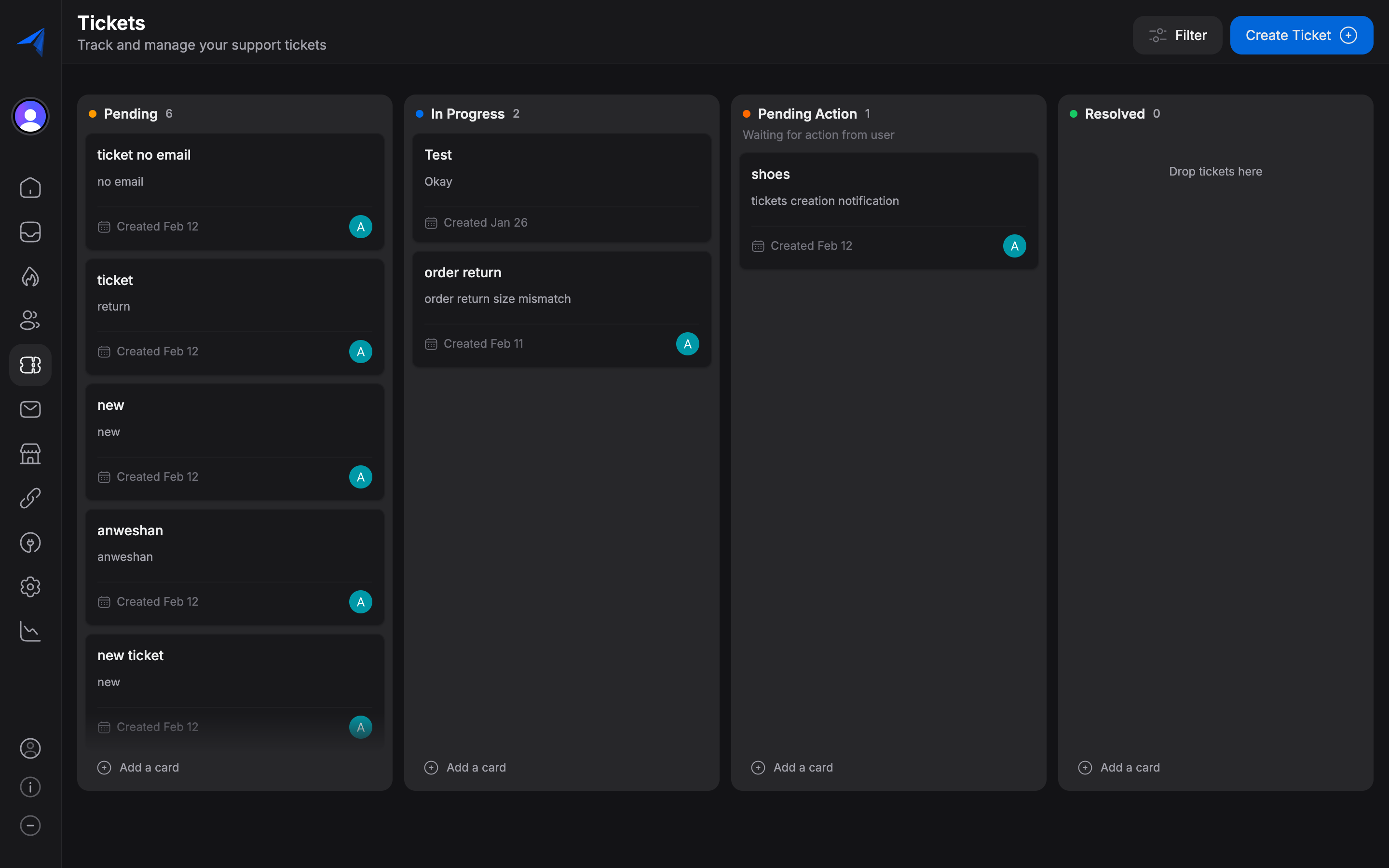
Click Create to add the ticket to your board. It will appear in the Open column.
Assigning Tickets to Team Members
Every ticket should have a clear owner. When creating a ticket, use the Assignee dropdown to select the team member who will be responsible for resolving the issue.
- You can assign tickets to any active team member in your workspace.
- The assignee receives a notification when a ticket is assigned to them.
- You can reassign tickets at any time by editing the ticket details.
If you are unsure who should handle a ticket, assign it to a team lead or manager. They can triage and reassign it to the appropriate person.
Setting Priority Levels
Every ticket has a priority level that helps your team decide what to work on first. Replyn supports four priority levels:
| Priority | When to Use |
|---|---|
| Urgent | Critical issues that need immediate attention (e.g., system outage, payment failure). |
| High | Important issues that should be resolved quickly (e.g., order not delivered, account access problem). |
| Medium | Standard issues that need resolution but are not time-sensitive (e.g., product question, feature request). |
| Low | Minor issues or informational requests (e.g., general inquiry, feedback). |
Urgent and High priority tickets should be addressed as soon as possible. Consider setting up internal guidelines for response time targets based on priority levels.
Tips for Effective Ticket Creation
- Write clear titles — A good title makes it easy to scan the ticket board. Use specific language like "Refund request for Order #5678" rather than "Customer issue."
- Include context in the description — Add any relevant details such as order numbers, screenshots, or error messages so the assignee can start working immediately.
- Assign immediately — Unassigned tickets can be overlooked. Always set an assignee when creating a ticket.
- Set accurate priorities — Overusing Urgent priority dilutes its meaning. Reserve it for genuinely critical issues.